|
By: Paul S Cilwa |
Posted: 9/13/2022
Updated: 10/25/2026 |
|
Page Views: 264 |
| Hashtags: #MultiverseMinder #VBNET #DragAndDrop #TelevisionEpisodes #CilwaLib #TagLibSharp |
| A VB.NET desktop app for merging episodes from multiple TV series into a single folder, renamed in chronological viewing order. |
| Estimated reading time: 7 minute(s) (1448 words) |
The Problem
I have digital downloads of many TV series. Some of
them—Stargate, the Marvel shows, the DC
"Arrowverse"—actually consist of two or more
titles telling a related story, complete with crossover
episodes where characters from one show "visit"
another. Fans have already worked out the chronological
viewing order on various websites. So I start with
folders open to each show—say, Batman,
Supergirl, Arrow, and Legends of
Tomorrow—and I want to drag episodes to a
single merged folder, prepending a sequence number so
they sort in the correct order.
That's a finicky manipulation, and depending on how
stoned one is, an error-prone one. Wouldn't it be nice
if an app could handle the renaming and moving
automatically?
The Solution
I originally called this app "Arrowverse," because the
DC crossover universe was my first target. Over time it
grew into something more general—it now handles
any set of interleaved series—so I renamed it
Multiverse Minder.
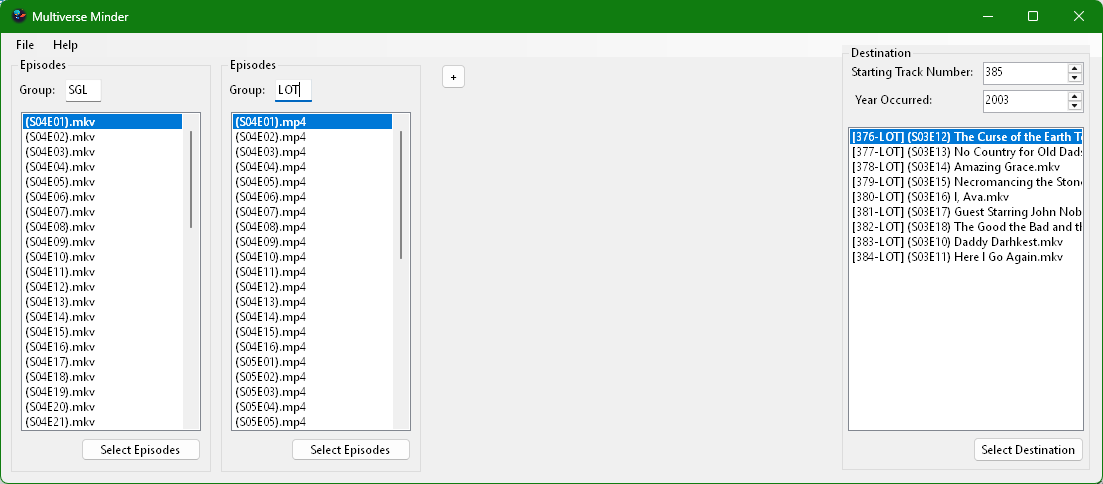
The idea is simple. The main window has two zones. On
the left, one or more source panels, each pointed at a
different series folder. On the right, a destination
list showing files already in the merged folder. Two
spinners at the top track the current sequence number
and the year the episodes aired.
You drag an episode from any source panel and drop it
on the destination list. The app moves the file,
renames it using a pattern like
[014-2014-FLS] (S01E08) The Flash vs. Arrow.mp4,
writes the track number, year, group code, and title
into the file's metadata tags via TagLibSharp, and
auto-increments the track number. If a file with
that name already exists, it warns you instead of
overwriting.
The sequence number, year, and last destination folder
are persisted in the Windows Registry via
SystemRegistry (from
CilwaLib),
so everything picks up where you left off next time
you launch the app.
How to Use It
First, click Select Destination on the
right to choose the folder where your merged
episodes will live. Any video files already in
that folder will appear in the destination list.
If the folder already contains renamed episodes,
the app reads the last file's track number and
year from its metadata tags and auto-populates
the spinners, so you pick up right where you
left off.
If you are starting fresh, set the Starting
Track Number to 1 and the Year Occurred
to the year the episodes originally aired—this
gets embedded in the filename so you can tell at
a glance which era you are watching.
On the left, each Episodes panel represents
one source series. Click Select Episodes
to point it at a folder full of episodes, and
type a short group code (like "SGL" or "LOT")
in the Group box. Click the +
button to add panels for additional series.
Now just drag episodes from any source panel and
drop them on the destination list, one at a time,
in the order you want to watch them. The app
moves and renames each file automatically and
bumps the track number. When you come back
tomorrow, the track number, year, and destination
folder are right where you left them.
The Naming Convention
Each renamed file follows a strict pattern:
[TrackNumber-Year-GroupCode] (OriginalEpisodeInfo) Title.ext
For example, if you are merging Arrow (group
code "ARW"), The Flash ("FLS"), and
Supergirl ("SPG"), and you have determined
that the eighth episode of The Flash should be
the fourteenth episode in the merged viewing order,
the file would become:
[014-2014-FLS] (S01E08) The Flash vs. Arrow.mp4
Because the track number is zero-padded to three digits,
a simple alphabetical sort puts everything in the
correct viewing order—no metadata database
required.
Persistence
The app remembers its state between sessions using
two mechanisms. The track number, year, and
destination folder are stored in the Windows Registry
under HKCU\Software\Cilwa\Multiverse
Minder via SystemRegistry. The source
folder configurations are saved as a
Multiverse Minder.ini file in the destination
folder itself, using the Settings class—so
each merged universe remembers its own source
layout.
Download
If you'd like to use Multiverse Minder yourself,
you can download the installer below. Fair warning:
because I refuse to pay hundreds of dollars a year
for a code-signing certificate, Windows will throw
up one of those scary "unknown publisher"
warnings when you run the installer. While I agree
we need ways to prevent bad actors from distributing
malware, I'd personally rather see that handled
by law than by private corporations deciding who's
trustworthy enough to write software. In any case,
you're welcome to browse the 2,100+ pages on
this site to satisfy yourself that I'm not,
and never have been, one to intentionally cause harm
to any being. And if you're still uneasy, you
can download the project source code instead and
inspect every line before building it yourself.
Architecture
Multiverse Minder is a .NET 10 Windows Forms
application written in VB.NET. It references
CilwaLib
for its string extensions (BaseName,
Left, Mid), the
Settings class (INI file persistence), and
SystemRegistry (Windows Registry access).
It also uses TagLibSharp to read and write
metadata tags (track number, year, grouping, comment,
and title) directly into each video file.
The app has two main classes:
Frame—the main window. Manages the
destination folder, the merged episode list, drag-drop
handling, track number and year spinners, and
load/save operations.
EpisodesList—a dynamically created panel
representing one source series. Each panel has a group
code textbox, a listbox of video files, and a button
to browse for the series folder. You can add as many
panels as you have series. Dragging from a panel's
listbox initiates the drag-drop operation, carrying
both the FileInfo and a reference back
to the originating EpisodesList so the
app knows which group code to use.
Key Code: The Drop Handler
The heart of the app is the destination list's
DragDrop handler. When you drop an episode, it
extracts the file and its source panel from the drag
data, builds the new filename, moves the file, writes
metadata tags into it, removes it from the source
list, adds it to the destination list, and bumps the
track number:
Private Sub lst_DestinationEpisodes_DragDrop(Sender As Object, e As DragEventArgs)
Dim DroppedFile As FileInfo
Dim DroppedEpisodes As EpisodesList
DroppedFile = CType(e.Data.GetData(GetType(FileInfo)), FileInfo)
DroppedEpisodes = CType(e.Data.GetData(GetType(EpisodesList)), EpisodesList)
Dim Info = ParseEpisode(DroppedFile, DroppedEpisodes.GroupName)
Dim TargetPath = Path.Combine(DestinationFolder, Info.FileName)
Dim TargetFile As New FileInfo(TargetPath)
If Not TargetFile.Exists() Then
File.Move(DroppedFile.FullName, TargetPath)
WriteMetaTags(TargetPath, Info)
DroppedEpisodes.Items.Remove(DroppedFile)
DestinationEpisodes.Add(New FileInfo(TargetPath))
val_TrackNumber.Value = Math.Min(val_TrackNumber.Maximum, val_TrackNumber.Value + 1)
Else
MessageBox.Show($"File already exists: {TargetFile.FullName}", ...)
End If
End Sub
Key Code: Parsing and Tagging
The ParseEpisode function constructs the
standardized filename and collects the metadata
fields into an EpisodeInfo structure. If the
original file already has parenthesized metadata
(like a season/episode tag), that gets preserved in
the comment field. WriteMetaTags then writes
those fields directly into the video file using
TagLibSharp:
Private Function ParseEpisode(Episode As FileInfo, Group As String) As EpisodeInfo
Dim Info As New EpisodeInfo()
Info.TrackNumber = CUInt(val_TrackNumber.Value)
Info.Year = CUInt(val_YearOccurred.Value)
Info.GroupCode = Group
Dim RawTitle As String = Episode.BaseName
Info.Comment = ""
If RawTitle.Left(1) = "("c Then
Dim i As Integer = RawTitle.IndexOf(")"c)
Info.Comment = RawTitle.Mid(2, i - 1)
RawTitle = RawTitle.Mid(i + 2)
End If
Info.Title = RawTitle.Trim
Info.FileName = $"[{Format(Info.TrackNumber, ""000"")}-{Info.Year}-{Group}] ({Info.Comment}) {Info.Title}{Episode.Extension}"
Return Info
End Function
Private Sub WriteMetaTags(FilePath As String, Info As EpisodeInfo)
Using tf = TagLib.File.Create(FilePath)
tf.Tag.Track = Info.TrackNumber
tf.Tag.Year = Info.Year
tf.Tag.Grouping = Info.GroupCode
tf.Tag.Comment = Info.Comment
tf.Tag.Title = Info.Title
tf.Save()
End Using
End Sub