|
By: Paul S Cilwa |
Posted: 3/14/2026 |
|
Page Views: 1,112 |
| Hashtags: #Programming #DLL #OCX #WindowsRegistry |
| How to create a simple Registry merge file that will add double-click registration (and context menu unregistration) to DLLs and OCXs on your computer. |
| Estimated reading time: 6 minute(s) (1385 words) |
If you've ever seen a picture of one of Einstein's blackboards, you know how
seriously he spoke when he said, "Three Rules of Work: Out of clutter find simplicity; from discord
find harmony; in the middle of difficulty lies opportunity."

DLLs and OCXs (both are actually DLLs; the "OCX" extension is meant for the
developer to distinguish between code libraries and tools libraries but both
library types have the same format, albeit distinct file extensions) have built
into them the ability to register and unregister themselves. Registered, a DLL
or OCX can be found when needed because the system has made note of it in the
System Registry, that eggs-in-one-basket repository of all system information.
Unregistered, that note is removed and the system simply says that it can't find
the DLL if a client program requests it.
Thing is, when I say the DLL "registers itself" I mean, of course, that it
does if asked. But how do you ask it? Ah, that's the trick. You have to
write a program to load the DLL by name, which then calls the registration
subroutine. Unregistration is done similarly.
Fortunately, Microsoft has written a one-size-fits-all program that loads and
registers (or unregisters) any properly-written DLL or OCX. It's called
RegSvr32 and resides in the c:\Windows\System32
folder. Unfortunately, the program is just sitting there, with no menu ID
and no user interface. As installed, a Windows user who wishes to specifically
register a DLL must open a Command window, and run a command similar to this:
c:\Windows\System32>regsvr32 mydll.dll
That will do the trick. (To unregister, add the "/u" flag to the
command line.)
c:\Windows\System32>regsvr32 /u mydll.dll
It's not hard when you know how; but it is tedious—all that typing,
and the possibility for introducing errors when happy fingers get tired. Surely
there must be a better way—an easier way. An opportunity out of difficulty, as
Einstein might have said.
Fortunately, Windows provides us with an easy way to
click our way to Nirvana even with command-based
programs, via the Windows Shell. And the Shell is
defined via entries made to the System Registry. So all
we have to do is figure out what entries need to be
made, make them, and poof: We have mouse/menu access to
the registration and unregistration capabilities of any
conforming DLL and OCX.
Now, this article is not going to be a
complete tutorial on the System Registry—as much fun as
that would be. I will mention that the program RegEdit
(which is not automatically placed on your Windows menu)
is the way to examine and (carefully) alter the contents
of the Registry. The program is also located in
c:\Windows\System32;
you can click on this link
to open a folder window, locate RegEdit.exe, then drag
it to your menu to create a permanent shortcut to it. (I
recommend putting it in Accessories..System Tools.)
Or you can use your Run command. Or just double-click
it. I don't care. In the upper left-hand corner (you
might have to scroll; Registry Editor returns to the
last keys accessed when it restarts) you'll find the
base key HKEY_CLASSES_ROOT. If you expand that entry,
you'll find a list of all the file extensions defined to
your system; and odds are .dll and .ocx
are two of them.
The entries themselves are boring. They simply name
the type of file that has the extension ".dll" a
"dllfile" and the type of file with extension
".ocx" an "ocxfile". You might be tempted to change
the entry to something more descriptive; but I don't
recommend it—because the value provided (either
"dllfile" or "ocxfile") is, in fact, another key in the
Registry; and if you change it, you'll break the link.
Searching further down in HKEY_CLASSES_ROOT, you'll
find the matching entry for "dllfile" (and below that, a
similar entry for "ocxfile"). Here's where you add a
"Shell" subkey if there isn't one already. (Windows
doesn't come with one, but other programs might have
created one for reasons of their own.) So the hierarchy
we want is:
HKEY_CLASSES_ROOT
dllfile
Shell
If "Shell" doesn't already exist, right-click on it
and choose New..Key from the context menu. That
will create a key with a generic name like "NewKey#1" or
some such. Replace the generic name with "Shell".
Similarly, right-click on "Shell" and create two more
keys: "Register" and "Unregister". Then, beneath each of
those, create another called "Command". You'll then see
this hierarchy:
HKEY_CLASSES_ROOT
dllfile
Shell
Register
Command
Unregister
Command
Finally, click "Command" under "Register" and, in the
right-hand panel, double click "(default)". This will
bring up a little dialog box for you to provide the
value for this key:
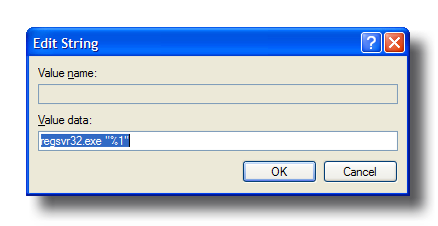
Windows automatically searches c:\Windows\System32
for unlocated executables; so all you have to specify
for the value data is
regsvr32.exe "%1"
The "%1" substitutes for the actual name of the file
you eventually double-click.
Similarly, the "Command" value for the "Unregister"
command is
regsvr32.exe /u "%1"
Now, this is all well and good. And if you were only
going to have to do it once in your life, this method
would be perfectly adequate. But the fact is, you're a
developer; you likely work with many computers, often at
the same time; and you switch from one to another more
often than President Bush renames his Iraq strategy.
Wouldn't it be great to have a little file you could
click that would make these changes to the System
Registry automatically?
It would. And you can.
The Registry Editor has an "Export" command that will
happily create a text file with Registry values that can
later be imported back (or transported to another
computer's Registry with the same command). Export will
write out one, many or all values. And the resulting
file can be loaded into Notepad, edited, merged,
commented, and in short be made developer-friendly.
What's more the file type is already defined to Windows
so a simple double-click will import the values at your
whim.
The format of values in this file specifies the key
in brackets, and the various associated values beneath
that by name, with "@" signifying the "default" value.
REGEDIT4
; This creates Register/UnRegister context menu commands
; for .dll and .ocx files.
;======
; .DLLs
;======
[HKEY_CLASSES_ROOT\.dll]
@="dllfile"
[HKEY_CLASSES_ROOT\dllfile]
@="Application Extension"
[HKEY_CLASSES_ROOT\dllfile\Shell\Register\command]
@="regsvr32.exe \"%1\""
[HKEY_CLASSES_ROOT\dllfile\Shell\UnRegister\command]
@="regsvr32.exe /u \"%1\""
;======
; .OCXs
;======
[HKEY_CLASSES_ROOT\.ocx]
@="ocxfile"
[HKEY_CLASSES_ROOT\ocxfile]
@="Special Controls Library"
[HKEY_CLASSES_ROOT\ocxfile\Shell\Register\command]
@="regsvr32.exe \"%1\""
[HKEY_CLASSES_ROOT\ocxfile\Shell\UnRegister\command]
@="regsvr32.exe /u \"%1\""
Note that this script defines—potentially
redefines—the ".dll" and ".ocx". Strictly speaking,
these lines aren't necessary. But the whole script will
fail if, for some reason, ".dll" or ".ocx" aren't
defined. So including those lines causes no harm, and
could help in some obscure circumstance.
Anyway, simply double-clicking the .reg file
containing this script is enough to cause the values to
be merged into the rest of your System Registry. For
your convenience you can also double-click the link
below and choose Run from the resulting dialog. Or save
the file onto your own disk and incorporate it into your
set of tools.
Either way will result in a little less discord, and
a little more harmony. And what could be wrong with
that?