|
By: Paul S Cilwa |
Posted: 10/5/2026
Updated: 10/25/2026 |
|
Page Views: 93 |
| Hashtags: #Software #DesktopMinder #Video #Film #VideoEditor #FrameStepping #Layers #ffmpeg |
| How to watch, make and edit films in Desktop Minder: playing the moment you open one, exact frames, picking up where you stopped, and an editor in which the video is the document. |
| Estimated reading time: 13 minute(s) (3084 words) |
Watching
Opening a Film
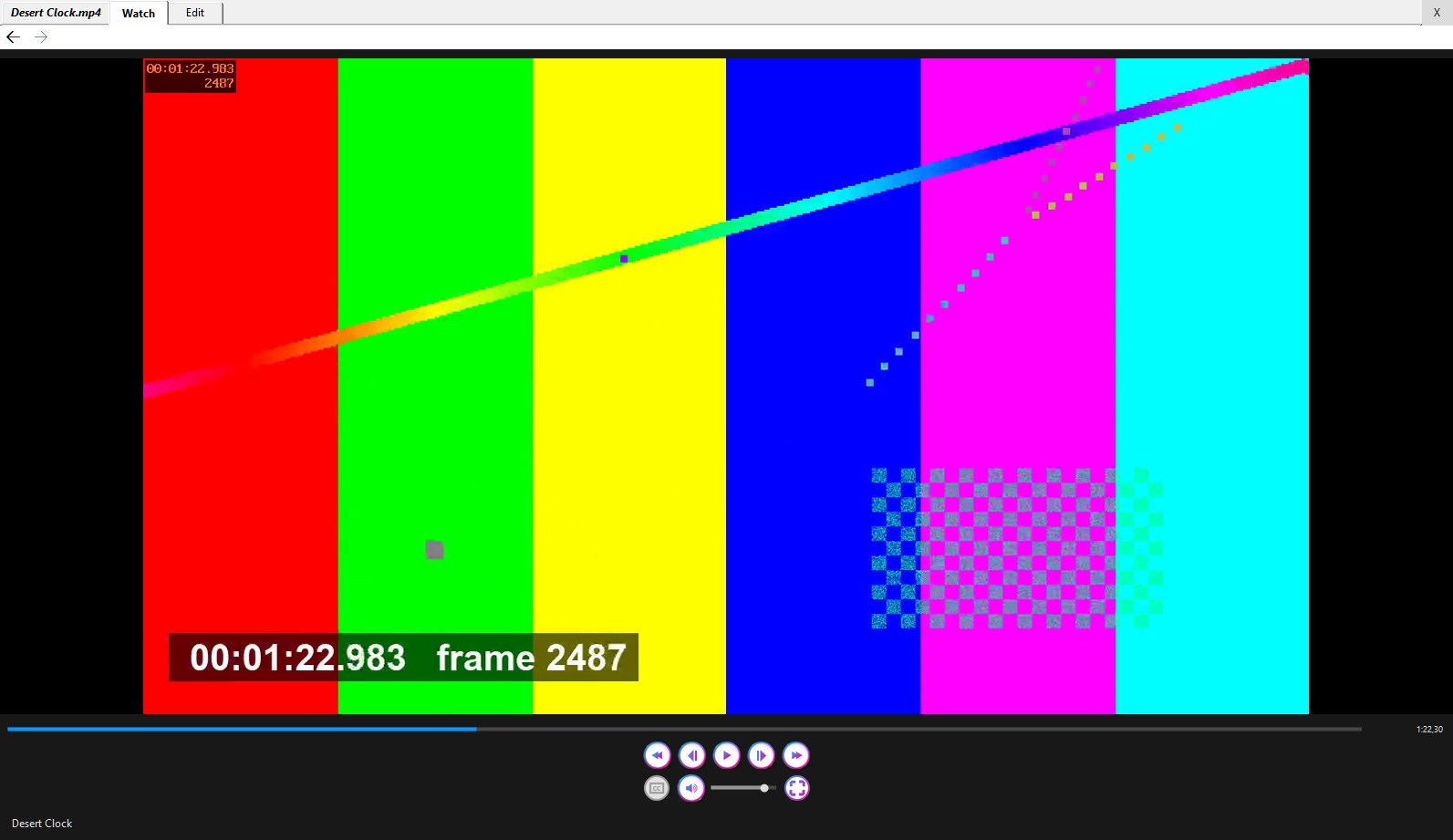
Double-click a film, in a folder or a launcher pane, and it plays, right there in the
View, because opening a film is the request to watch it. The tab says
Watch. MP4, MKV, AVI, MOV, WMV, M4V, MPEG, WebM and the other common kinds open
this way; anything else goes to whatever Windows would have used. The playing is done
by the engine inside VLC, but inside Desktop Minder, so you don't wait for another
program to draw itself before you see a frame. Starting a film quiets whatever else
was playing, the Jukebox included.
Under the picture is a transport bar of pictures rather than words: a rail to
move through the film, with the time and the length above it; then back five seconds,
play and pause, forward five seconds; then CC for subtitles, the speaker, a
volume rail and full screen.
- Left and Right skip five seconds; Space plays and pauses;
Comma and Period step a frame back and forward (see below). The keys
are heard when the player has the focus or the pointer is over it.
- The full-screen button fills the screen with the picture; Esc, F11 or
a double-click ends it, and Space, Left and Right still work. The
controls float over the picture and show when you move the pointer.
- CC is lit only if the film has subtitles. It lists the tracks, with
None at the end. A .srt, .ass or .vtt file beside the film,
named like it (or Name.en.srt), is loaded too.
One Exact Frame at a Time
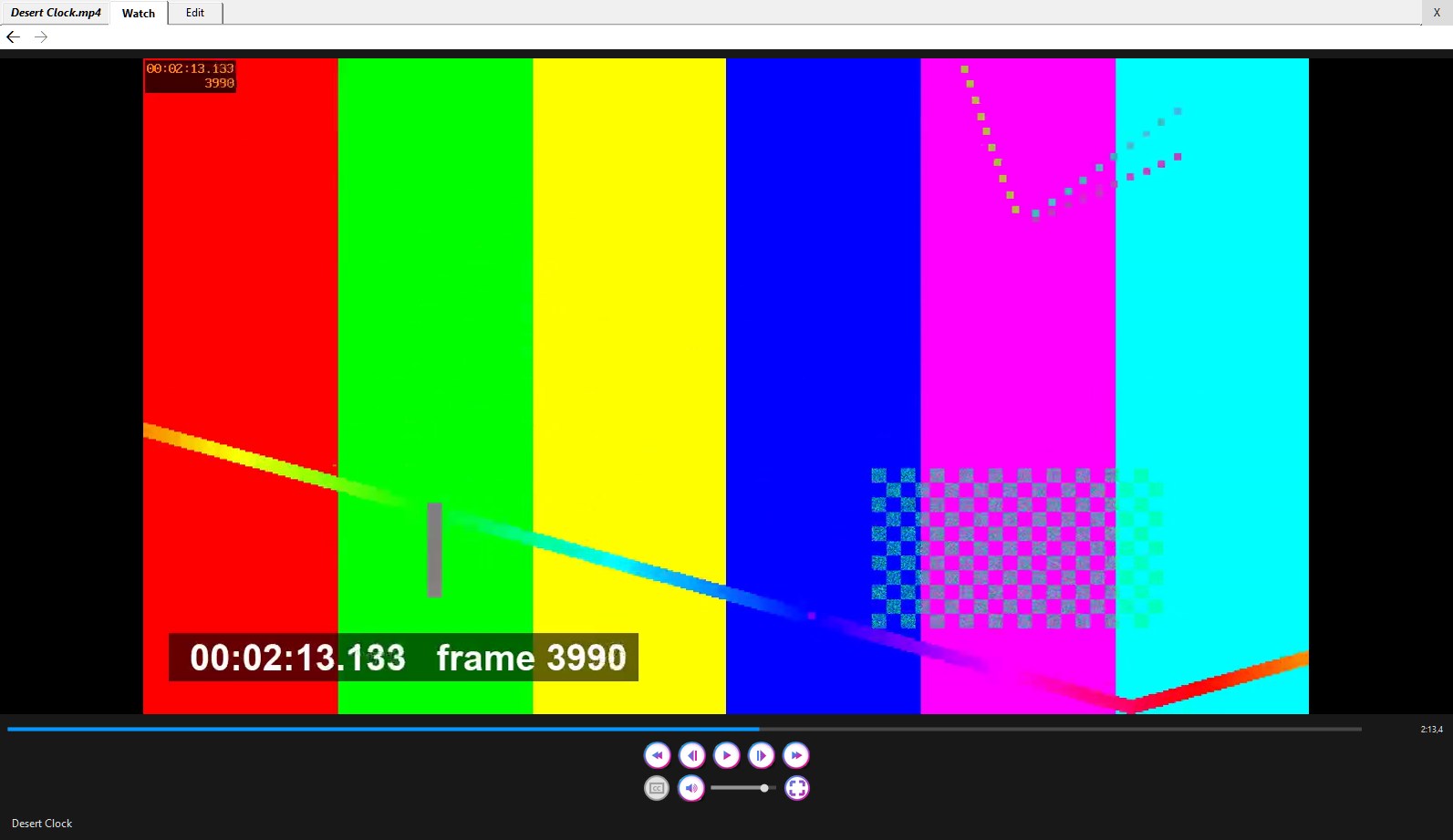
If ffmpeg is installed, two more buttons appear, Back one frame and Forward one
frame. Pause, press one, and you get the next or the previous frame—not
roughly; exactly—and Play carries on from there. Pausing shows an exact
frame, too. While one is on show the clock reads like 2:13,23: the twenty-third
frame to begin during the second marked 2:13. The first jump to a new place can take a
second or two; after that, steps are instant. Phone footage is shown the right way up.
Right-click the frame for Copy Image, then To Clipboard or To File....
Either way you get the film's full-size frame, the right way up, not the copy on the
screen. A file is offered a name like Storm surf [1080p] 2m13s,23 and is saved as
PNG or JPEG, by the extension you give it. Paste it into a folder and it's a picture
there.
Picking Up Where You Left Off

Close a film halfway and open it next week, and it starts five seconds before where
you stopped, to pick up the sentence that was being said. The place is noted every ten
seconds while you watch, and again when you pause and when you close the View, so
even a crash loses nothing. Less than a minute in counts as a look, not a watch, and
isn't remembered. A film counts as finished once you're into its last five minutes,
because nobody stays for the credits—but never more than its last tenth, or a
twenty-minute episode would be finished at the quarter-hour.
The memory is yours, not the film's. It's kept in a list of your own, in your
OneDrive where you use one, so it follows you to your other computers, and nothing is
written into the film or its folder. So a film you watch on a shared drive doesn't
change for the person who watches it next. One consequence: a film is known by its whole
path, so renaming or moving one makes it a new film, whose watching starts clean.
- A folder's listing can show Last watched and Resume at columns
(right-click a column heading).
- Mark as Watched and Mark as Unwatched, on a film's menu, set them by
hand, for any number of films at once.
- Hide Watched Videos, on a folder's View menu, leaves only the films you
haven't finished. A film part-way through is never hidden.
Names, Tags and Formats
A film's right-click menu offers:
- Play > Now / Next / Last, which puts it in the Jukebox's queue.
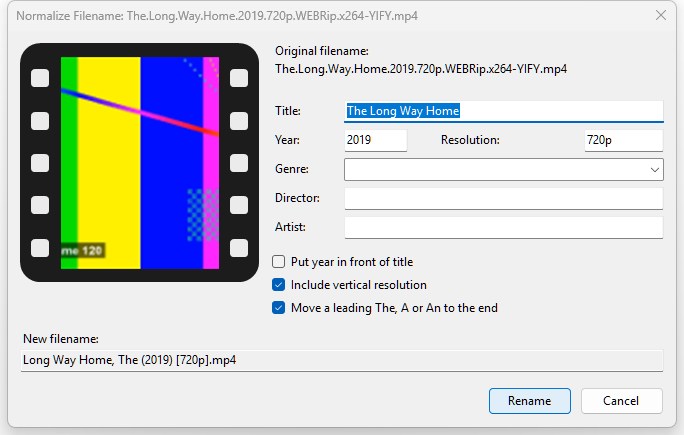
- Normalize > Filename... reads a film's title, year and resolution out of
the kind of name films tend to arrive with—Bros 2022 1080p 10bit WEBRip 6CH x265
HEVC-PSA—and shows you what it found. You correct it, add a genre or a
director if you like, tick whether the year goes in front, whether to include the
resolution, and whether a leading The, A or An moves to the end,
and press Rename: the tags are written and the file renamed, to Green Mile,
The (1999) [1080p].mkv.
- Convert... makes a copy in another wrapper (Matroska, MP4, QuickTime, WebM or
AVI), choosing for the picture and the sound whether to copy them as they are or
re-encode them, and what to do with subtitles. It's a dialog rather than a plain
command because there's no such thing as a plain conversion of a film: the reason is
nearly always the subtitles. Needs ffmpeg.
- Edit Tags, Copy Tags and Paste Tags, like a track's. The
Properties panel shows title, director, artist, series, episode, year and genre
(all editable there), then the length, when you last watched it, and where you'd resume.
Making a New One
Choose Document > New > Video, on the bar of a folder open in the View or of
a launcher pane, or right-click an empty place in a launcher pane and choose New >
Video. It asks nothing. It makes an empty file named Video- and the date and
time, with .mp4 on the end, and needs nothing installed to do it. In a launcher pane
the new video opens at once, on the Edit tab, and its name is ready to type over; in
a folder's listing the name is ready and the video stays closed. The Watch tab of an empty
one says "Nothing to watch yet." The Edit tab shows one black layer, 1920 by 1080 at 30
frames a second, with room for thirty seconds.
Behind the scenes, a video is a folder. It looks like one film to you, in a listing and on a
pane; File Explorer sees a folder whose name ends in .mp4. In it are a link to each
piece of footage you've brought in (or a copy, if you asked for one), a small file of
instructions saying which stretch of which footage goes where, on which layer, to the exact
frame, and the finished film. A plain film becomes a video at the first real edit, such as
the first footage dropped on a layer, and not before: looking at its Edit tab writes
nothing. A split changes the instructions, never the footage, so nothing you shot is ever
cut up.
Editing
The Edit Tab
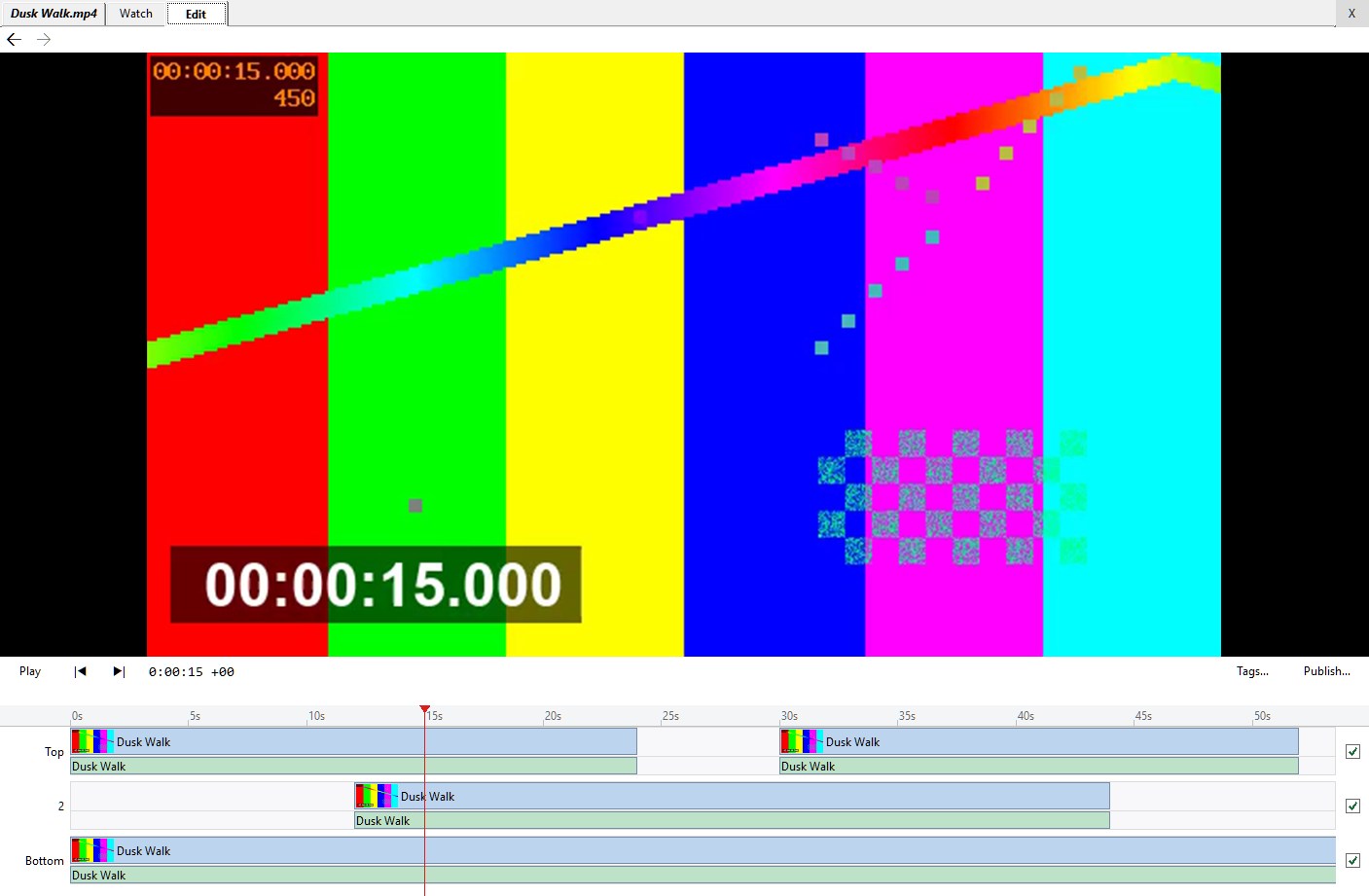
From the top: the picture; the transport bar; a line of notes and warnings; and then the
layers. The transport bar has Play (which becomes Pause), a step back and a
step forward, a clock showing hours, minutes, seconds and frame, and at the right
Tags... and Publish....
Each layer is a row, with Top first and Bottom last, and a ruler
above them all. A layer has a lane of picture, in blue, over a lane of sound, in green, and
a tick box at its right end that says whether it plays. A piece of footage on a layer is
a moment; it shows its first frame and its name. A red line, with a triangle at the
top, is the playhead, and it's always on a whole frame. Four layers are shown at a
time, and the wheel scrolls to the rest.
Play on the Edit tab is a quick preview of the topmost layer's picture with its
own sound. For the real thing—every layer's sound mixed, and the layers stacked—watch it on the Watch tab, once the film has been made.
Bringing Footage In
Drag films and sounds onto a layer, from a launcher pane, a folder, File Explorer or the
video's own Assets pane, and they land where you drop them, snapped to the nearest
neighbor or the start. Several files dropped together go end to end, in the order you
dragged them. A film becomes one moment in both lanes; a sound file lands in the sound
lane only. The first picture you drop sets the video's size and frame rate if you never
set them. The whole drop is one step in the history, "Dropped Beach 01" or "Dropped 3
clips," and a blue ghost shows where it will land, a red one where it won't.
A plain drop links: a tiny link file is written into the video's folder, so a big
piece of footage isn't stored twice, and the link works on your other computer too if
the footage is in OneDrive. The Assets pane, a slide-out that appears on the left
once the video is a folder, lists what's been brought in. Drop onto it to link, drop with
Ctrl to copy the file in, with Shift to move it in.
It tells you, along the note line, when it can't: "name is another video, and one
video inside another comes later," "is a still picture, and pictures on a layer come
later," "is in the cloud and not on this PC yet" (it's brought down; drop it again in a
moment), or "Needs ffmpeg."
The Playhead
Click anywhere in a lane or the ruler to put the playhead there; drag in the ruler to scrub.
Left and Right move it a frame, Shift with them a second. Space
plays and stops. The wheel scrolls through the layers, Shift and the wheel through
time, and Ctrl and the wheel zooms the time scale.
Split
To cut a moment in two, double-click it where you want the cut. The first click
puts the playhead there, so the cut falls where you clicked; if you click within a few
pixels of the playhead it stays put, so you can step to an exact frame with the arrow
keys and double-click near the line. Or right-click the moment and choose Split
Here. There's no scissors tool and no mode; I preferred the double-click. A split
keeps every frame of the film exactly as it was.
Delete and Close Up
Click a moment to select it (Ctrl+click to add or take away more; click empty space
to clear), and press Delete, or right-click it and choose Delete. That
leaves a gap and nothing slides along. To take up the slack, right-click the empty
stretch and choose Close Up: everything later on that layer, both lanes,
slides left by the gap. If something would then overlap, it says so and does
nothing.
Join, Unlink and Link
After a split, the cut is a seam. Right-click within a few pixels of it and choose Join
to put the two halves back together—but only if they still run on from each other
in the footage. Unlink, on a moment that has both picture and sound, makes them
two independent moments, so you can move or trim one without the other. To link them
again, select both (Ctrl+click) and choose Link.
Moving and Trimming
Drag a moment to move it, along the layer or to another one; every selected moment goes
with it and keeps its spacing. Drag the first or last few pixels of a moment—the
pointer becomes a sizing arrow—to trim it: shorter, or longer again up to what the
footage actually holds, but never into a neighbor and never to less than one frame. Edges
and moments snap to the start of the video, to the edges of other moments, and to the
playhead, and an orange line shows where. A blue ghost means fine; a red one, refused,
and the note line says why. Esc during a drag cancels it.
Layers
Right-click a layer's label for Move Up and Move Down, which change which layer
covers which: where there's a picture on an upper layer, it hides the layers below. A
layer with nothing in it lets the ones beneath show through. Untick a layer's box and
it leaves the picture and the film. To have more layers or fewer, change Layers
on the Properties panel (1 to 99): raising it adds empty ones at the bottom;
lowering it removes empty ones, lowest first, and never one that has a moment on it.
Missing or Changed Footage
A moment whose footage can't be found is hatched in red and says Missing; one whose
file has changed but still fits is dashed in orange and says Changed. Right-click
a missing one and choose Find... to say where it is now (a copy kept inside the
video's folder is looked for first), and any moment's menu has Open Source, which
shows the original footage in the Jukebox at that moment's first frame. Footage kept
in OneDrive is held on your device while the video is open, and let go when its film
has been made.
The Video's Properties
With the video open, the Properties panel has a Video group: Title,
Director, Artist, Series, Episode, Year, Genre, and
then Width, Height, Frame rate (23.976, 24, 25, 29.97, 30, 50, 59.94
or 60), Other frame rates (whether footage at a different rate keeps its rate or its
frames), Background, and Layers. Select some moments and a Moments
group describes them: source, in, out, place and length. Change a frame rate and, if
moments would then overlap, it's refused.
Tags
The Tags... button opens the tag sheet for the video: title, director, artist,
series, episode, year, genre, comment, description and copyright. The tags belong to
the video and travel with the film that's made from it, and changing them is an
undoable step.
Undo and What Has Been Done
Every change is a step. Right-click a moment, and the submenu named for the video offers
Undo: split Beach 01 at 0:00:04 +02, Redo, What Has Been Done, with
Go Back to Here and Take This Step Out on every step, Back to How It Was
Opened, and Write the Changes Now. Ctrl+Z and Ctrl+Y work on the
layers too. The history lasts for the sitting.
You Never Save, and the Film Makes Itself
The instructions are saved about three seconds after your last step, and again when you
leave the tab or put the video down. The first time in a sitting, the old instructions go to
the Recycle Bin; on a drive with no Recycle Bin, you're asked, when you leave Edit, whether
to keep your changes ("They'll be permanent"), and No takes the video back to how it
was last agreed.
The film is made behind your back. When a video is put down, or the Watch tab needs it,
ffmpeg makes Build.mp4 in the video's folder, one at a time at low priority so that
you can keep working, and swaps it in when it's whole. The Watch tab plays the old film at
once if it's still right; otherwise the strip says Updating..., and A newer film
is ready when it is. If you changed the video on another computer, the strip says
Out of date, and Bring Up to Date on the video's menu makes this computer the
one that builds it.
Publish
When you want the film as an ordinary file, press Publish.... It makes the final film
at full quality, in the format the file's name says, and puts it where the video is. It
asks first what to do with the video's folder: Keep the folder, which leaves it
beside the film as Name.mp4.bak, or Delete the folder, which goes to the
Recycle Bin once the film is in place. (On a drive with no Recycle Bin, the second button
says it deletes it for good, and means it.) The footage your links point to is never
touched. It takes a while, shows its progress along the foot of the window, and can be
stopped with Cancel Publishing; if anything goes wrong the folder is put back.
Edit a published film whose .bak is still beside it, and the whole video comes
back, with the published film inside it, ready for more.
What It Needs
Playing a film, remembering where you were, tags and renaming need nothing but Desktop
Minder. Exact frames, Copy Image, Convert..., reading footage you drop,
making the film and Publish... need ffmpeg and ffprobe, which are free,
and are found if they're on your path, in Program Files\ffmpeg, or in C:\ffmpeg\bin.
Where they're missing, those commands are grayed with the tip Needs ffmpeg.
Not Yet
- Titles and text over the picture; transitions and cross-fades; effects, speed and
reverse.
- Still pictures on a layer, a video inside another video, picture-in-picture, and
moving or scaling a picture on the screen.
- Volume, fades, mute and solo for a layer or a moment. (The recording editor has them;
the video editor doesn't yet.)
- Finding the scenes in footage by itself, so that long footage lands already divided.
- Naming layers, and buttons to add or remove them; copying and pasting moments; Select All.
- Dropping something onto an open film in the Watch tab: it takes nothing dropped on
it.