|
By: Paul S Cilwa |
Posted: 10/5/2026
Updated: 10/25/2026 |
|
Page Views: 104 |
| Hashtags: #Software #DesktopMinder #Audio #Music #MIDI #Jukebox #Tags #MusicLibrary #Recording #AudioEditor |
| How to listen to, make and edit sound in Desktop Minder: tracks, music libraries and one Jukebox for everything; recording, cutting and mixing in the Edit tab; and tags, covers and names for any number of recordings at once. |
| Estimated reading time: 14 minute(s) (3158 words) |

Listening
A Track
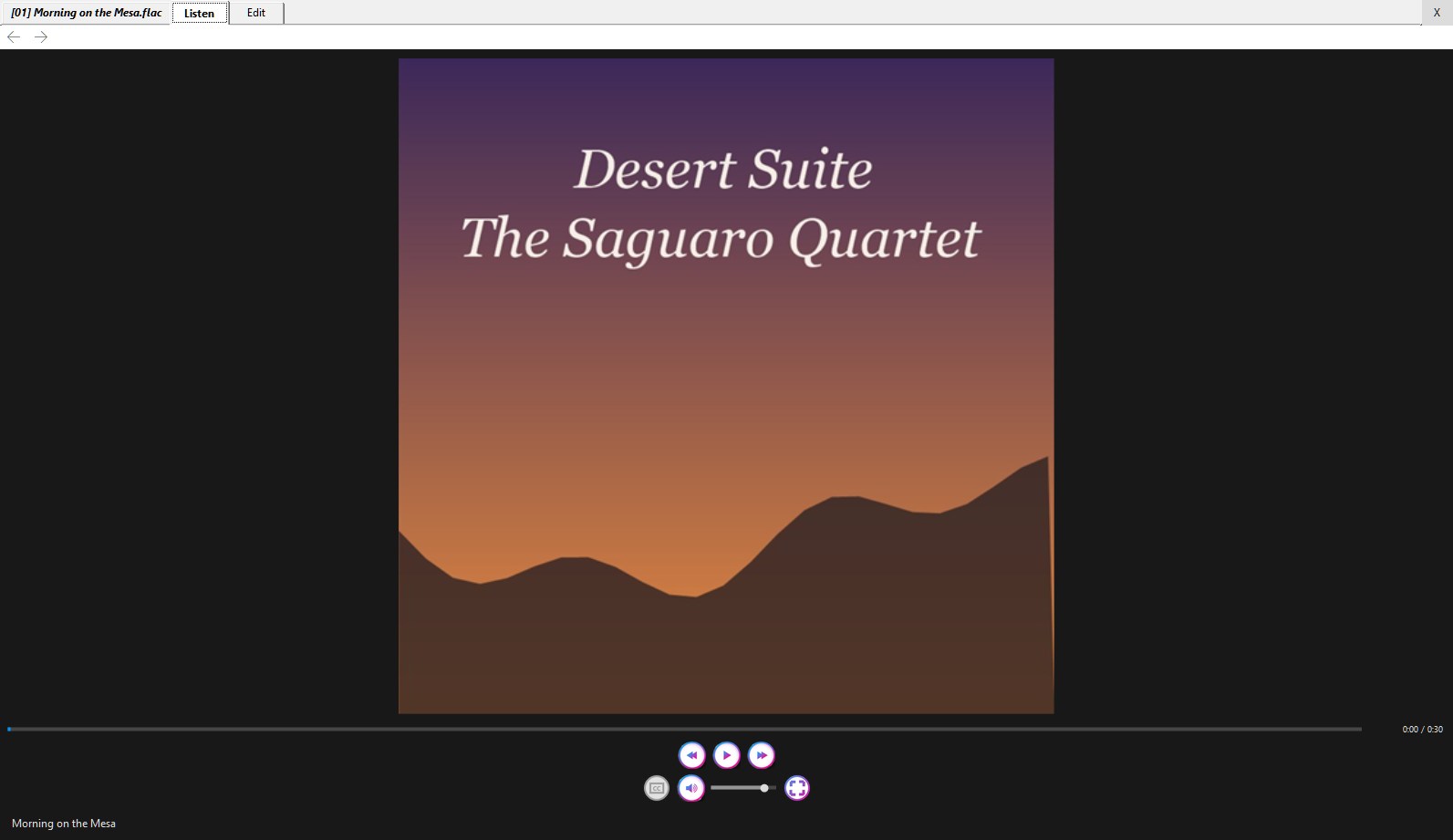
Double-click a track and it opens in the View with its cover on it, cued but not
playing. Press Play. A track isn't started for you the way a film is, because a
track is opened to be seen—its picture, its title, its facts—and a program that
starts making a sound of its own accord is a program that gets closed. MP3, FLAC, WAV, M4A,
Ogg, Opus, AAC, WMA, AIFF and a good many rarer kinds open this way; anything else goes
to whatever Windows would have opened it with.
Under the cover are the title, with the artist and album beneath it, and the same transport
bar a film has: a rail to move through the song, with the time above it; back five
seconds, play and pause, forward five; then CC for lyrics, the speaker, a volume rail
and full screen. Left and Right skip five seconds and Space plays and
pauses, when the player has the focus or the pointer. Starting a track quiets
anything else that was playing, the Jukebox included, and there is one volume and one mute
for every player. Pause is a short fade, not a cut.
The cover is the first of these it finds: a picture inside the track's own tags; a picture
in its folder named cover, folder, albumart, front or album;
the same in the artist's folder above; or the program's own music picture. CC shows
lyrics when there are some: a .lrc file beside the track, a .txt beside it, or its
LYRICS tag. Timed lyrics run over the bottom of the cover, the current line bold; plain
ones go in a box. The Properties panel on the right-hand strip has the rest: track,
title, artist, album, year, genre, length, bit rate, frequency, bit depth, channels and
quality.
Scores
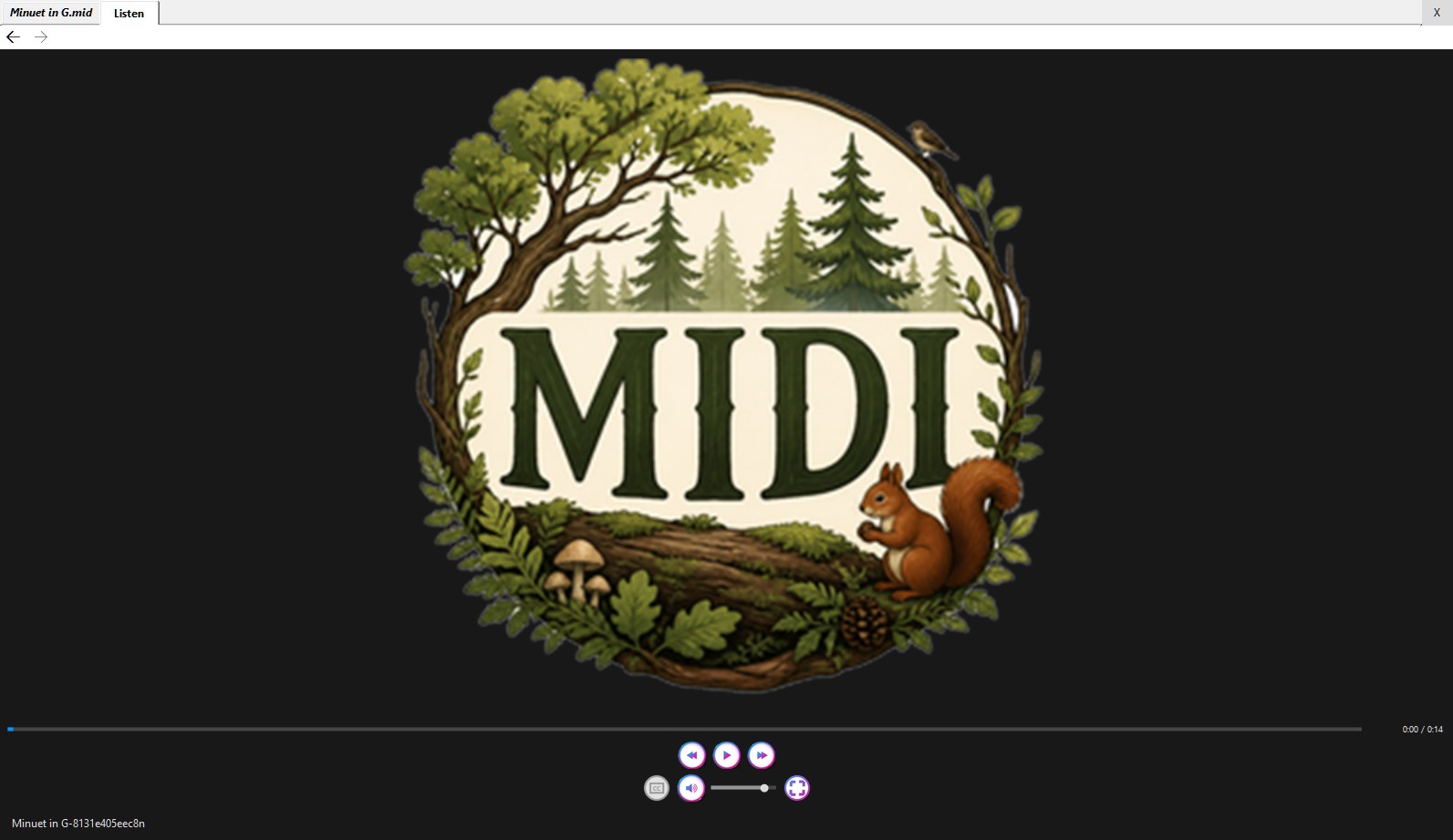
A MIDI file is a score, not a recording: it says which notes to play, not what they sound
like, and a player has no orchestra of its own. So Desktop Minder has it performed first,
once, by FluidSynth with a SoundFont for its voices, and then plays the performance like any
other recording. A score has only a Listen tab, no tags, and one extra command,
Convert to FLAC, which keeps that performance as a file beside the score. Without
FluidSynth and a General MIDI SoundFont, the command is grayed and says what it's waiting
for, and the Properties panel says what is missing.
The Jukebox
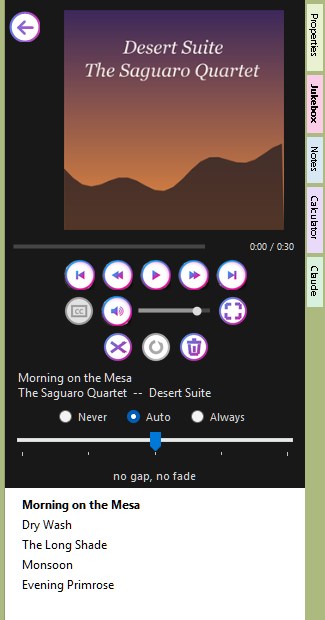
The Jukebox is a tab on the right-hand strip, and whichever desktop you're on borrows it. You
fill it by dragging tracks, albums or folders into it, from a pane, a folder or File Explorer,
or by right-clicking them and choosing Play:
- Play > Now replaces the queue with this and plays it.
- Play > Next puts it straight after what is playing.
- Play > Last puts it on the end of the queue.
Never by clicking: a click is looking, and looking at an album must not quietly line it up.
Its rows show song titles and album covers rather than file names, because a playlist showing
file names is showing its own plumbing. Drop in an album you have in more than one form and it
plays the best copy of each song: lossless before lossy, then the better grade, then the higher
bit rate. Double-click a row to play it; drag rows to reorder them; Del takes the
chosen ones out. Beside the usual buttons for the previous and next song are Shuffle,
Repeat (off, one track, all) and a bin.
Under the player, Never, Auto and Always and a slider say how songs
join: from two seconds of silence between them to two seconds of overlap, with Auto
deciding from the two songs' genres. The queue's right-click menu has Loop and
Volume Leveling—Off, Track, Album or Automatic—which
use the loudness tags that Normalize > Loudness writes. An arrow beside the picture
opens the player in the View, as a tab of its own, with the queue staying in the strip. The
queue is remembered from one session to the next, down to the place in the current song,
and nothing plays until you ask.
And only one thing sounds at a time. Start a film, a song in the View, a video on a web page or
a clip in the Wikipedia panel, and whatever else was playing goes quiet. Putting a page or a
film out of sight doesn't silence it, though: you might be following a podcast on a page
you've moved away from.
Music Libraries
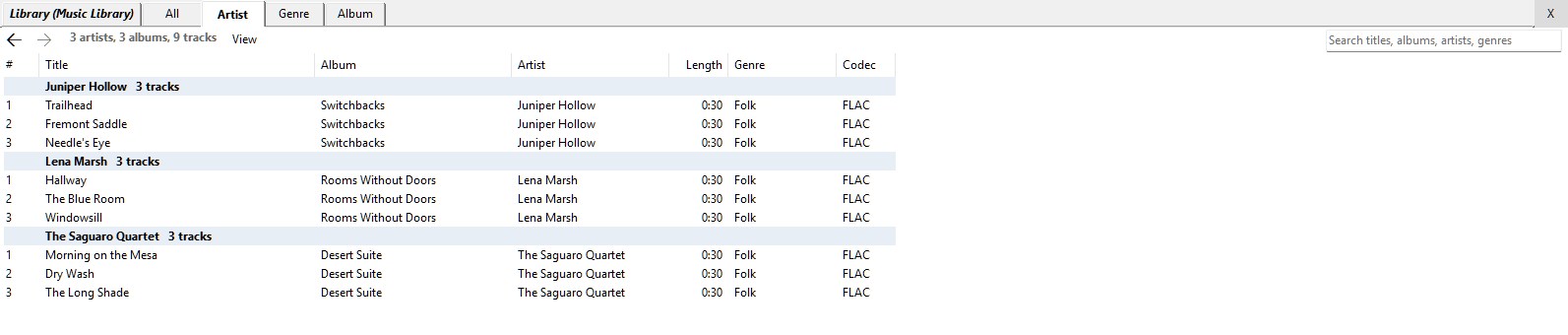
A drive or folder laid out the usual way, artists and then albums, can be made into a
library: right-click it and choose Scan Music Library. It asks first, reads every
track's tags into one small file at the top of the music, and shows its progress in a
window that you can stop between artists without harm. From then on, opening it gives you
the library rather than the folder, and Rescan Music Library reads only the albums
that have changed. The library file lives with the music—on the server, if that's where
the music is—and each machine keeps a copy of its own, checked against the original no
more than once an hour.
A library has tabs along the top of the View: All, Artist, Genre and
Album. Each lists every track in the library, with a heading before each artist's, genre's
or album's own, and how many tracks it has. Its View menu offers List, List
Details and three sizes of icons, where a track wears its album's cover. A search box
looks through titles, albums, artists and genres at once. Double-click a track and it opens in
the View; double-click an artist's or an album's heading and it opens as the folder it is;
double-click a genre's, which has no folder of its own, and it's gathered into one, of shortcuts,
that lists and queues like any other. Open Launcher puts the library's artists and albums
on the left-hand strip as panes of their own.
Making a New One
New Audio
Choose Document > New > Audio, on the bar of a folder open in the View or of a
launcher pane, or right-click an empty place in a launcher pane and choose New >
Audio. It asks nothing, and makes an empty FLAC file named Audio- and the date and
time. In a launcher pane it opens at once on the Edit tab and its name is ready to type
over; in a folder's listing the name is ready and the recording stays closed. The Listen tab
of an empty one says "Nothing recorded yet."
Recording
On the Edit tab, the label at the right of the toolbar says Input: and a name.
Click it to choose where the sound comes from:
- What you hear, for each playback device: whatever the computer is playing, a
stream, a recording, a video. This is what it starts with.
- Each microphone, a webcam's included.
- Only a program's sound, for each program that is making sound just now. Start
the program playing first. This needs Windows 10 build 19041 or later.
The choice is yours for this computer; it isn't written into the recording. Monitor lets
you listen to the input and watch the level meter without recording, so you can set things
right; Record starts a take, and Stop (or Space) finishes it. Windows' own system
sounds are switched off while you record and put back when you stop, so a notification chime
can't land in the take. A take is laid down at the cursor, or the start of the selection,
over whatever is already there, on the first track you've chosen. It is kept whole and
unprocessed, as a file in the recording's own folder, and any silence of half a second or more
is kept as silence, so the timing is true. A take of zero length is discarded.
Editing
The Edit Tab
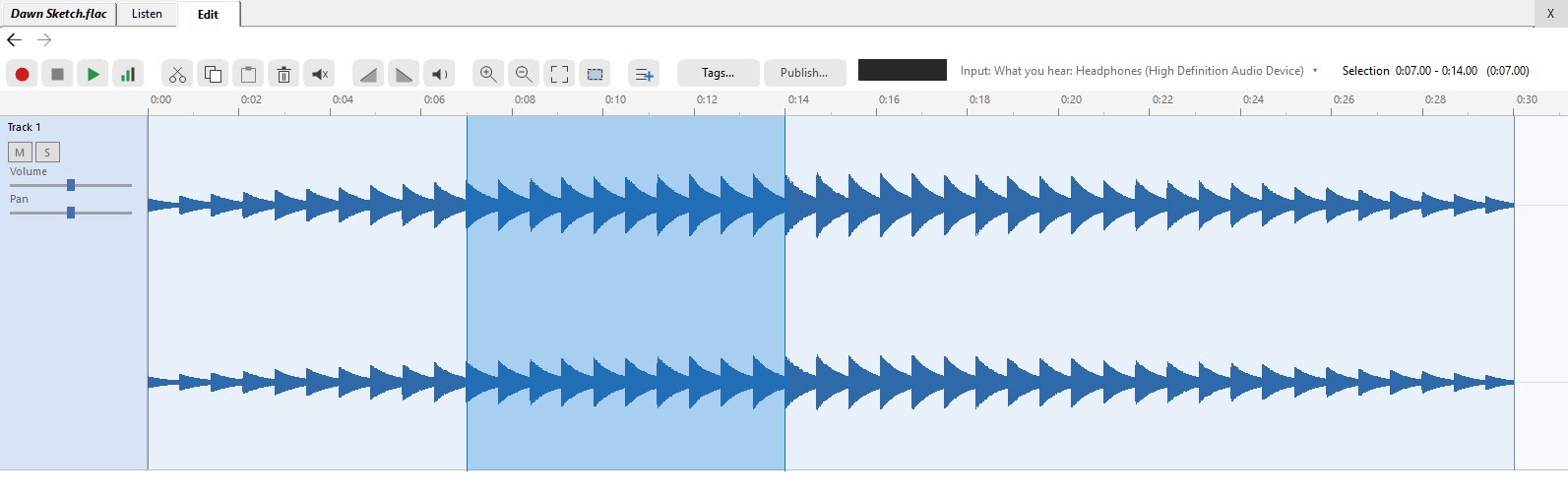
The first thing you edit or record turns the recording into a project, which is a
folder: your original is kept untouched inside it, with a file of instructions that says
what has been done to it, and the takes. Nothing is ever cut out of an original; a cut
changes the instructions. To File Explorer it's a folder, but to you it is the recording:
same name, same tile. At the top of the Edit tab is a toolbar, and under it a waveform of every
track, a line of readouts—the cursor's time, or the selection's start, end and
length—a level meter, and a line of notes.
| Button | What it does |
|---|
| Record, Stop, Play, Monitor | Record and listen: R, Space, Space, M. Play plays the selection, or from the cursor. |
| Cut, Copy, Paste | Ctrl+X, Ctrl+C, Ctrl+V |
| Delete | Takes out the selection and closes up the gap (Delete) |
| Silence | Makes the selection silent but leaves it the same length (Ctrl+L) |
| Fade In, Fade Out | A straight ramp across the selection |
| Volume | A menu: Louder +12, +6 or +3 dB; Quieter -3, -6 or -12 dB; or Normalize |
| Zoom In, Zoom Out, Fit, Selection | Look closer, further, at all of it, or at the selection |
| New Track | Adds an empty track at the bottom |
| Tags..., Publish... | See below |
The Waveform
Click to put the cursor, a thin black line. Drag to select a range, which shows as a blue
band over the tracks it covers; drag down into other tracks and they join in. Shift and
click extends the selection, Ctrl and click toggles a track in or out, and
double-clicking selects the clip under the pointer. With the waveform focused, Left
and Right move the cursor (Ctrl for a second, Shift to extend),
Home and End go to the ends, Up and Down change track and
Ctrl+A selects all. The wheel scrolls up and down; Shift and the wheel scrolls
sideways; Ctrl and the wheel zooms around the pointer. While playing, the playhead is a
crimson line.
Cutting, Copying and Silence
Each command works on every selected track at once, as one step in the history. Delete
and Cut take the range out and close up the gap on those tracks only; Cut also
holds it. Paste replaces the selection if there is one, and otherwise inserts at the
cursor and pushes the rest along; one track's worth goes into each selected track.
Copy and Paste work within one recording, not between two. Silence keeps the length.
A command that can't be done is grayed, with the reason as its tip—"Select part of the
track first."
Fades and Volume
Fade In and Fade Out ramp the selection from or to silence. Volume applies
a chosen change to the selection, or to the whole track if nothing is selected.
Normalize brings each selected track's loudest sound in the range just under full scale,
and says so if there's nothing there to bring up. Each track also has its own Volume
slider in its header, from nothing to double, snapping to normal.
Tracks
Each track has a header on the left with its name, M for mute, S for solo, a
Volume slider, and for a stereo recording a Pan slider that snaps to the middle.
Right-click a track for Rename Track..., Mute, Solo, Move Up,
Move Down, New Track and Delete Track (a recording always keeps at least one).
Right-click a selection and the menu is headed by it—"0:05.00 - 0:12.50 on Track
2"—and offers the cuts, Fade and Volume.
Trimming by Dragging
Move the pointer to the edge of a clip, within about five pixels, and it becomes a
left-and-right arrow. Drag in to shorten the clip, leaving a gap; drag out to bring back
what was taken, as far as the sound goes and a neighbor allows. An orange line with a time
shows where it will land, and snaps to the selection's ends and the playhead. Esc
cancels; letting go makes it one step.
Undo and What Has Been Done
Right-click and open the submenu named for the recording: Undo: Delete, Redo,
What Has Been Done—a numbered list in which every step offers Go Back to Here
and Take This Step Out, the second grayed with its reason when a later step
depends on it—Back to How It Was Opened, and Write the Changes Now. The
instructions are saved about three seconds after your last step. Where there is no Recycle
Bin, you're asked when you leave Edit whether to keep your changes, and No takes the
recording back to how it was last agreed.
Listen to the Result
The Listen tab plays the recording as the instructions describe it, made once by
ffmpeg the first time you ask, with a note, Getting it ready to play.... An unchanged
recording just plays the file.
Tags... and Publish...
Tags... opens the tag sheet for the project: what the finished recording will
carry. Changing them is an undoable step.
Publish... makes the final recording at full quality, in the kind of file the project's
name says, with the project's tags and the original's cover, and puts it where the project
is. It asks first what to do with the project's folder: Keep the folder, which
leaves it beside the recording as Song.flac.bak, or Delete the folder, which
goes to the Recycle Bin once the recording is in place. (On a drive with no Recycle Bin, the
second button says it deletes it for good, and means it.) If the name is a lossy kind, like
MP3, it warns that the file keeps less of the sound than the project has. If anything
goes wrong the folder is put back. Edit a published recording whose .bak is still
beside it, and the whole project returns. A recording's menu also has Copy ffmpeg
Command, which puts on the clipboard the command that makes it.
Everything About the Sound
These work on any recording, or on fifty, from a folder's listing or a pane.
Edit Tags
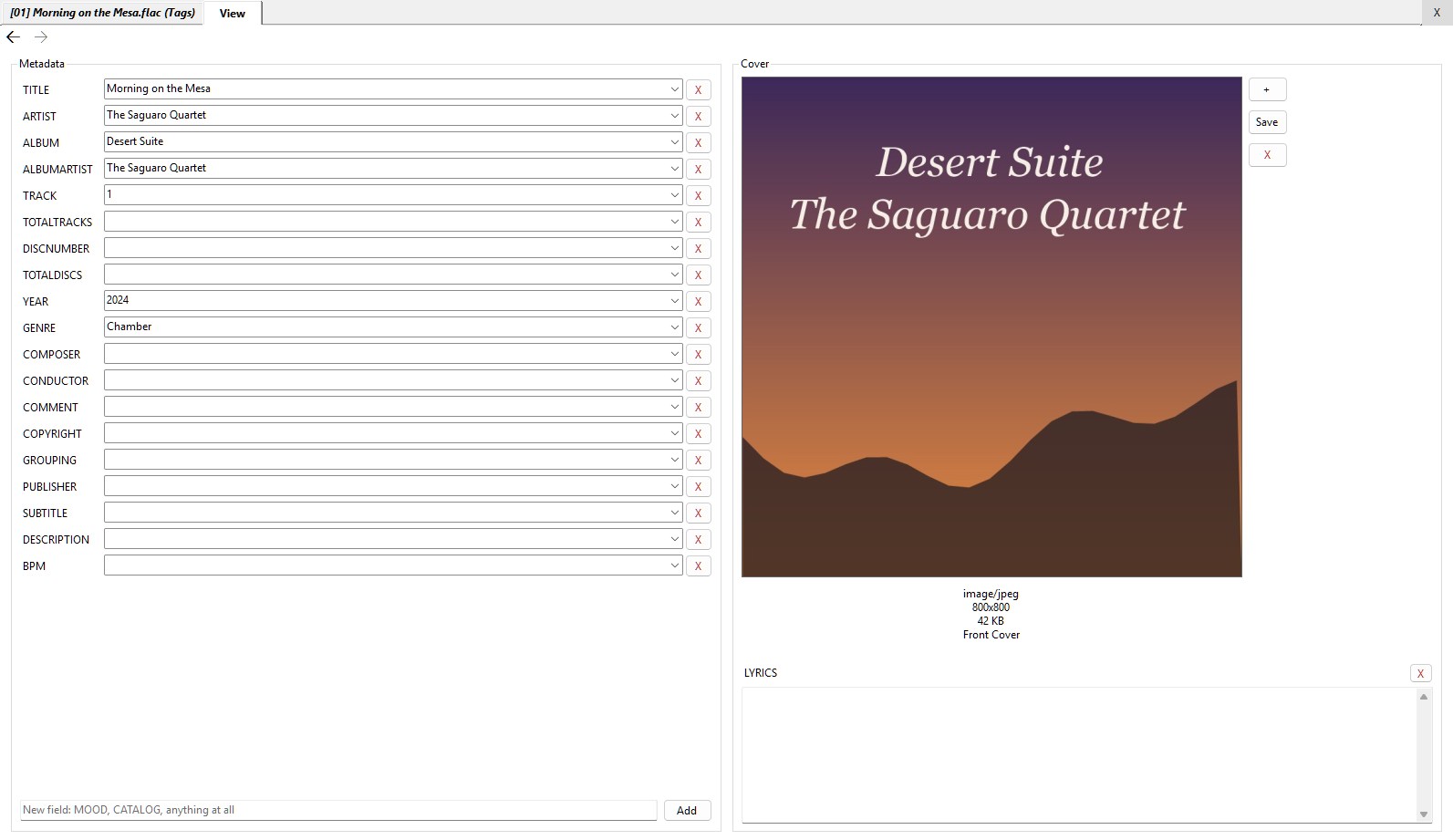
Edit Tags, on one recording or fifty, opens a sheet in the View with every field the
files have: title, artist, album, album artist, track and disc numbers, year, genre, composer,
conductor, comment, lyrics and the rest, plus any field you care to add—MOOD,
CATALOG, anything at all—by typing its name in the box at the foot and pressing
Add. Each is a box you can type in or choose from. Where the files disagree it says
< keep >, and leaving it alone leaves each file as it was; the list also offers
< blank >. The Cover box shows the picture, with buttons to add one, save it
out, or take it off every file, and it takes a new one dropped on it. A lone recording with no
tags opens with its title and number already guessed from its file name. There is no OK button:
what you change is written a minute after you stop, or the moment you put the sheet down, and
only the fields you touched, and only in the files where they differ.
Copy Tags and Paste Tags
These carry one recording's tags, cover and all, to another, or several to several in
order—except ReplayGain, which describes one particular recording and means
nothing on any other. A recording keeps its own title and track number if it has them.
Set Track Numbers
Set Track Numbers... is Mp3tag's numbering wizard, because that's where people
already know it from. It numbers the files in the order the listing shows, so in a folder
sorted by None it numbers them in the order you've dragged them. It can begin
anywhere, save the total, pad with leading zeros, and do disc numbers, even starting a
new disc when the folder changes.
Normalize
Normalize > Filename renames a track from its tags, as [01] First Song.flac,
filling in any missing tags from the old name first; names that would collide are left
alone, and it tells you. Normalize > Loudness > Track and Album measure
with ffmpeg and write ReplayGain tags, which the Jukebox's volume leveling uses; the sound
itself is never changed. On a folder it asks first, and shows its progress along the foot of
the window, where a click stops it.
Convert To
Convert to makes a copy beside the original in another format: WAV, FLAC, MP3 (at
128, 160, 192, 256, 320 or variable), Ogg Vorbis, Opus, AAC, AIFF or WMA. Any...
opens a box with the kind, the quality and where to save. The tags come along, and the cover
with FLAC and MP3. If the copy already exists it asks before it overwrites.
Covers and Cells
A picture in an album's folder offers Set as Album Cover, which writes it into every
track there. And in a folder listing, a track's number, title, artist, album and album
artist can be typed over right where they are, the way Mp3tag does it: select the row, then
click the cell again, slowly. Enter writes it into the file; Esc cancels. The Quality
column grades every track, from XQ for genuine high resolution down to LQ, by what the
recording is rather than by its bit rate alone.
What It Needs
Listening, recording, editing and tags need nothing but Desktop Minder. Convert to,
Normalize > Loudness, the Listen tab after you've edited, Publish... and
Copy ffmpeg Command need ffmpeg and ffprobe, and a score needs
FluidSynth and a SoundFont. Where something is missing, the command is grayed with a tip
that says what.
Not Yet
- Bringing an existing sound file into a project. For now the only thing that adds sound is
recording, though you can record "what you hear" while something else plays.
- Split, insert, trim to selection, reverse, and effects of any kind—equalizers,
noise removal, speed.
- Copying between two recordings, and a keyboard Undo.
- Dropping something onto an open track: it takes nothing dropped on it. A sound file
dropped on a video's layers does land in its sound lane, though.