|
By: Paul S Cilwa |
Posted: 10/25/2026
Updated: 10/25/2026 |
|
Page Views: 23 |
| Hashtags: #Software #DesktopMinder #Folders #FileExplorer #Columns #Sort #Rename #DragandDrop #Compress |
| How to open, look at, make and change a folder in Desktop Minder: a listing in place, with columns that depend on what is in it, tags you can type into, and its settings kept inside it. |
| Estimated reading time: 11 minute(s) (2554 words) |
Opening a Folder
Going In and Coming Out

Double-click a folder, in a launcher pane or in another listing, and it opens in the
View, the middle of the screen. The first tab is the folder's name, and resting the
pointer on it shows the full path; the only other tab, for an ordinary folder, is
View. On the bar:
- Back and Ahead work as a browser's do. Back first retraces the folders you
browsed into, and after that goes to the document you had open before. Hold either
down, or right-click it, and the whole trail unfolds as a list.
- Up goes to the folder this one is in. It's grayed at a drive's root.
- Refresh is on the View menu, and F5 does the same. You rarely need
it: the listing notices changes in the folder, from Desktop Minder or from anywhere
else, and brings itself up to date about half a second after the last one.
A folder keeps its place. Go in, wander off, and come back by Back, Ahead or Up, and the
same row is at the top, the same rows are selected, and the same one has the focus. A
folder gone into afresh starts at the top. A folder on another computer is read on a
thread of its own, with a wait cursor, so a dead share can't freeze the screen; if it can't
be read, you're told.
The Line at the Foot
With nothing selected, the strip at the foot of the window says what's in the folder—"169
items, 3 hidden, 1,234 GB available space"—and with something selected, "4 of 169
selected." An empty folder says "This folder is empty" across its listing.
Folders That Are More Than Folders
Some folders open as what they are, not as a listing. A video or
an audio project is a folder, but opens as the film or recording it
makes. A scanned music library opens as a library, and a book of contacts as a table. A
mailbox is a folder shown with its baskets—Inbox, Sent, Spam and the rest—as
tabs along the top; the Email pages are about that. If you want to
see inside one of these as the folder it really is, Shift and double-click it, or
choose Open Launcher.
Looking at It
How It's Drawn
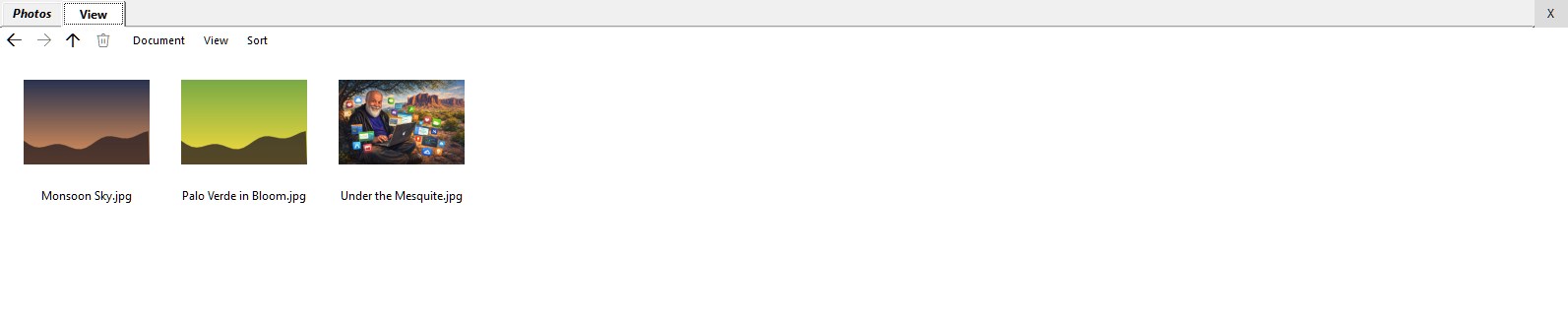
The View menu on the bar offers five layouts, one ticked:
- List Details, rows with columns, which is where a folder starts;
- List, names only, running down and then across;
- Extra Large Icons, Large Icons and Medium Icons, with the real pictures
Windows would draw for them: a photograph's own thumbnail, an album's cover, a film's
first frame in a strip of film.
Below those are three ticks: Show Hidden, for files with the Hidden attribute (and
the folder's own settings file, which is otherwise kept out of sight); Show Extensions,
for this folder, so that Sunset.jpg reads Sunset; and Hide Watched Videos, which
leaves out the films you've watched to the end. Right-click on an empty place in the listing
and the same choices are under View and Show, along with Paste. A folder
with no choice of its own follows the Settings sheet's Show extensions box.
Columns
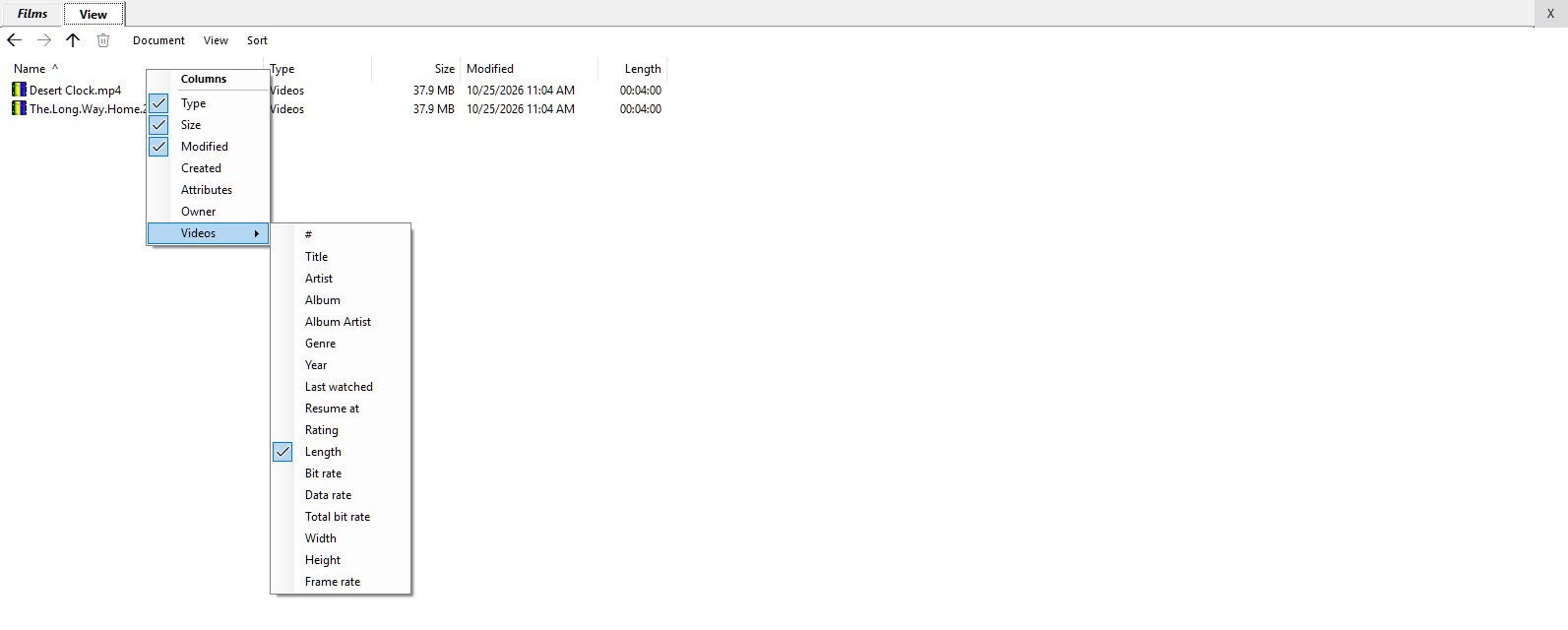
Right-click a column heading to see the columns on offer. Every folder offers Type,
Size, Modified, Created, Attributes and Owner, and then a
heading for each kind of file that is actually in the folder:
| Kind | Columns it adds |
|---|
| Music | # (track), Title, Artist, Album, Album Artist, Length, Bit rate, Frequency,
Bit Depth, Quality, Channels—and Disc, Composer, Conductor, Genre, Year, BPM, Comment,
Copyright |
| Videos | Length (on to begin with), and Title, Artist, Album, Width, Height, Frame
rate, Data rate, Genre, Year, Rating, Last watched, Resume at |
| Pictures | Rating, Tags, Date taken, Dimensions, Width, Height, Resolution, Color
depth, Camera maker, Camera model, F-stop, Exposure time, ISO speed, Focal length |
| Mail | From, Subject, Received |
| Applications | Description, Product, Company, File version, Product version |
Click a column to show it or hide it. Drag the edge of a heading to change its width; the
width is saved a moment after you let go. The columns sit in a fixed order. The point of
offering only what's relevant is that Explorer's menu of three hundred columns, nearly all
of them meaningless for what you're looking at, is nobody's idea of help.
Sorting
The Sort menu offers None, Name, every column that's showing,
Ascending and Descending. Clicking a column's heading does the same, and
clicking the sorted heading flips the direction. Name and Type start ascending; Size and
Modified start with the biggest or newest. Folders always sit before files. None is a
custom order, described below.
Selecting
Click to select a row; Ctrl+click to add or take away one; Shift+click for a
range; Ctrl+A for everything. Drag a rubber band from an empty part of the Name cell,
or from the space under the rows, to sweep up a group. (While you're typing a name or a
cell, Ctrl+A is the text box's.)
It Remembers
The layout, sort, hidden and extension choices, which columns are showing, and their widths
are all kept in a small hidden text file inside the folder, Desktop.dmini. It's written
only when there is something to remember, and removed when there isn't. Because it's in the
folder, moving the folder moves its memory with it, and if the folder is in OneDrive the
same listing waits for you on your other computer. A folder that can't be written to, such
as one in Program Files, says once that it can't remember anything and will look the
way you left it only until you leave.
Making a New One
Choose Document > New on the folder's bar. At the top is Folder; below that,
the documents that can start out empty: Audio, Text (Plain, Rich
and Full), Video and Word Document. (In a mailbox's Outbox there's
Email, and in the Mail folder, Mailbox.) The new item gets a name made of its
kind and the moment—Folder_261025_143015, Text-261025-143015.txt—is
selected, and has its name open for typing at once: type, press Enter, and it's named;
Escape keeps the made-up name. New files are empty, and none of them is opened, since
you may be making several. A name that's taken gets a number added. The kinds are described
on the pages for text, audio and
video.
Document > Create Shortcuts offers Web Site..., which asks for a name and an
address and makes an .url shortcut, and Program..., which lets you pick an
.exe and makes a shortcut to it named for the program's own description, wearing its
icon. Right-click a program and Create Shortcut puts one beside it.
Changing a Folder
Rename
Right-click and choose Rename, or click the name of a row that's already the only one
selected, and the name opens in place. With extensions shown, only the part before the
extension is selected, so typing keeps the kind; with them hidden, what you type gets
the old extension put back. Enter keeps the new name, Escape drops it, and clicking away
keeps it. A name with characters a file can't have, or one that's already taken, is
refused with a word about why.
Delete
The trash can on the bar, the Delete key and Delete on the menu do the same
thing. On a drive that has a Recycle Bin, nothing is asked: the items go to the bin and the
strip at the foot says so. On a network or removable drive there is no bin, so you're asked
first, with No the default—"This cannot be undone." The trash can is gray unless
something deletable is selected. (In a mailbox's Spam basket it's lit with nothing selected,
and then deletes every message there.) The Recycle Bin is the only undo there is.
Cut, Copy and Paste
Cut, Copy and Paste are on the right-click menu and the Document
menu, and they use Windows' own clipboard, so you can cut in Explorer and paste here.
Copy as Path puts the quoted path on the clipboard. Paste takes more than files: text
becomes a new .txt file named PastedText- and the moment, and a picture becomes a
PNG, named PastedImage- and the moment.
Drag and Drop
Drag rows out with the left button. Drop on a subfolder row, which lights up, and they go
into it; drop anywhere else in the listing and they go into the folder you're looking at.
Files dragged in from Explorer, or from any pane, follow the same rules. What happens
depends on the keys, and on one rule that holds whatever the drives:
| Hold | The drop |
|---|
| Nothing | Moves |
| Shift | Moves |
| Ctrl | Copies |
| Ctrl+Shift | Makes a shortcut |
The one exception is a program: if everything you drag is a program, or a shortcut to
one, a plain drag makes a shortcut, because nobody has ever wanted to move Word.exe onto
their desktop. Before you let go, the pointer says whether the drop will be taken, and
why not if it won't: "Already in this folder," "Name can't be put inside itself," or that
the folder belongs to Windows. Copy into the folder a file is already in, by Ctrl and drag
or Copy and Paste, and you get a duplicate named Report (copy 1).docx, then
(copy 2), and a copy of a copy is another copy of the first.
Copies, moves and deletes go in one queue, one at a time, so that two copies don't fight for
the disk and both go at half speed. The strip at the foot of the window shows "Copying 2 of
5 to Photos: name.jpg" with a progress bar; click it for a window of everything waiting,
with a Cancel. When Windows has a question, such as which of two files to keep, the strip
says it's waiting for you.
Typing Tags in the Listing
In List Details, select a track or a film on its own, then click one of its cells again—a
slow second click, not a double-click. The cell becomes a text box. Type, and press Enter to
write it into the file, or Escape to leave it. Clicking away writes it too. Five columns can
be written this way, for music and for films: #, Title, Artist, Album
and Album Artist. The track number must be a number. The rest of a track's tags are on
Edit Tags, described under Audio.
A Custom Order
Choose Sort > None and the rows stay where you drag them: pick up a file and drop it
between two others, with a line to show where it lands. Folders stay first, and the order is
saved in the folder. Drop selected files squarely on a file row while a sort is on, and the
listing switches to None, with the rows as they stand, and moves them. An album's tracks are
numbered in this order by Set Track Numbers.
Numbering Files
Select some files, folders or both and choose Normalize > Filename..., and they're
renamed in the order shown with a number in front, in one of six styles: 1.,
01., 1), 01), A) or [01]. It carries on from the numbered item
just above your selection, in that item's style, or in the one chosen on the Settings sheet's
Numbering files choice ([01] until you choose). Numbers are padded as far as the last
one needs, and neighbors numbered the same way are brought to the same width, so the names
still sort. It always shows what will happen first—each name now, and what it
becomes—and it's all or nothing: a clash refuses the whole job, and Escape puts
everything back. (Music and films have their own Normalize > Filename, which
renames from tags.)
Compress and Uncompress
Right-click a .zip, .tar, .tar.gz, .tgz, .gz, .7z or
.rar and choose Uncompress: it comes out into a new folder named for the archive,
beside it, never over anything; an archive that is one folder comes out as that folder.
Right-click a folder and choose Compress, and you get a .zip of it. Both check
every file afterward, and by default put the original in the Recycle Bin once the new one is
sound; hold Ctrl as you choose to keep it, or turn that off on the Settings sheet. On a drive with
no Recycle Bin, it asks whether to delete the original for good, with Keep the default.
The progress is on the strip at the foot, the window waits, and Esc stops it and takes
away what it had made.
A Picture for the Folder
Right-click a folder and choose Choose Icon.... Add any picture, or drop one on the
window, and it's turned into a proper icon and kept inside the folder, so the folder keeps its
picture when you move it, share it or sync it. (In Explorer it's right-click, Properties,
Customize, Change Icon, find a .ico, OK, OK—and the icon vanishes when the folder is
copied.)
Properties
Choose Properties and the right-hand strip's Properties panel describes the
folder: what it contains, folders and files, whether it has an icon of its own, and
whether it has settings of its own. Show in File Explorer opens Explorer on it, for
the few things only Explorer does.
Protected Folders
The Windows folder, Program Files, Program Files (x86) and Desktop Minder's own
folder, and everything inside them, can be looked at and copied from, but not changed. Cut,
Delete and Rename are left off the menus, New and Paste aren't offered, drops
are refused with a word of explanation, and the trash can stays gray. That holds for an
administrator too. The shared General desktop can only be changed by one.
Not Yet
- A search or filter box in a folder listing. (A music library has one.)
- Open with, and the entries other programs add to Explorer's menu—7-Zip and
the like. The menu is Desktop Minder's own. Hosting Explorer's means several hundred
lines of code whose failure mode is a crash, and I haven't thought it worth the
price.
- Keyboard shortcuts for Cut, Copy and Paste in the listing, and Enter to open; for now
use the menu, the right button, and double-click. F5, Delete and Ctrl+A work.
- Dragging columns into a new order, or grouping rows.
- Compressing to anything but a .zip.