|
By: Paul S Cilwa |
Posted: 10/25/2026
Updated: 10/25/2026 |
|
Page Views: 25 |
| Hashtags: #Software #DesktopMinder #Launcher #Panes #Folders #Apps #Pin #LeftStrip |
| The panes down the left side of each Desktop Minder desktop: the standard tabs, how to open a launcher on any folder (and as many as you like), and how to use and close them. |
| Estimated reading time: 8 minute(s) (1725 words) |

What a Launcher Is
A launcher is a wall of icons, called tiles, one for each thing in a folder. Click the vertical
tab on the left edge and the pane slides out; click the same tab again and it slides back,
giving the View its width. The tab's words read from the bottom up, and are bold while the
pane is open. Rest the pointer on a tab and it shows the full path of the folder behind it.
Several launchers can be open at once, side by side: Ctrl+click a second tab to
add it, or Shift+click to take a range. Drag the pane's inner edge to resize it (from
120 to 900 pixels; each desktop remembers its own width). Hold something you're dragging over
a closed tab for a moment and it opens, so you can drop into it.
The Standard Tabs
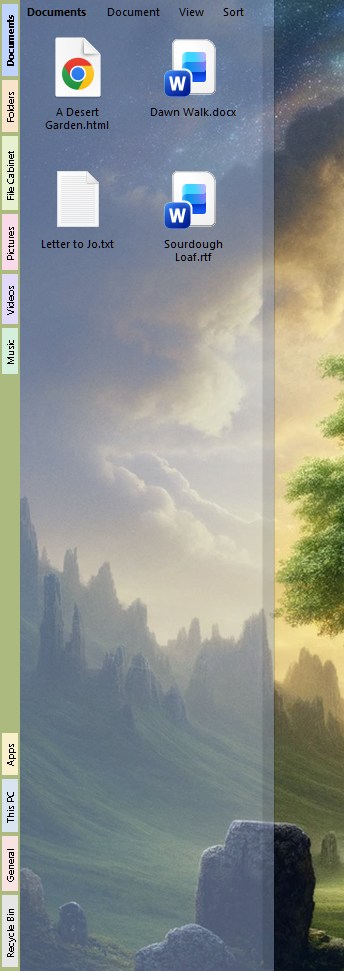
Every desktop has the same thirteen standard tabs, in two groups: the top ones, in the order
below, and a bottom group pinned to the foot of the strip.
| Tab | It shows | Starts |
|---|
| Documents | The desktop's own folder: everything that isn't a program or a folder | On |
| Folders | The same folder: its subfolders, and shortcuts to folders | On |
| File Cabinet | Your Windows Documents folder | On |
| Pictures, Videos, Music | The Windows folders of those names | On |
| Downloads | Your Downloads folder | Off |
| PIM | Mail, Contacts and Calendars, kept together | Off |
| Apps | The desktop's folder again: programs, scripts and shortcuts to programs | On |
| This PC | Every drive and device, and Desktop Minder Settings | On |
| General | The shared Public Desktop, for everyone who uses this computer | On |
| Recycle Bin | The Recycle Bin | On |
| Windows Settings | Every page of Windows' Settings app, filed under its category | Off |
The last five, from Apps down, are the bottom group.
Documents, Folders and Apps are one folder with three filters, so the
programs stay out of the way of the documents. If it guessed wrong about an item, right-click it and
choose Shows As > App, Folder, Document or Auto; the
choice is kept in the desktop's folder.
Showing and Hiding Tabs
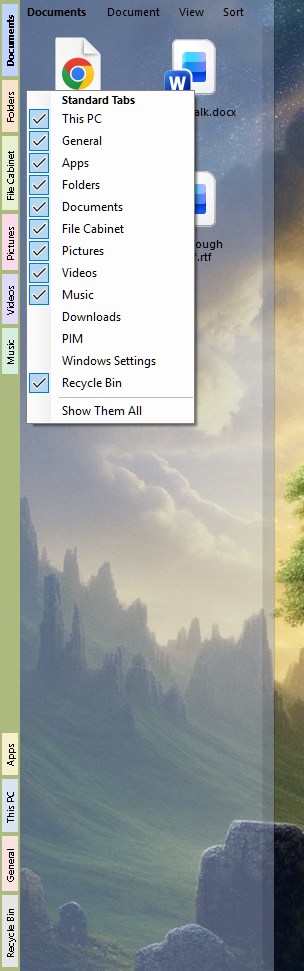
Right-click the strip, or any standard tab, and the menu is headed Standard Tabs, with
all thirteen listed and ticked where shown. Click one to show or hide it; Show Them All
at the foot puts everything back, and once everything is showing it reads Close All but
This PC. The same ticks are on the desktop's settings page, under Side tabs,
in a list headed Left, on this desktop. (The list beside it, Right, on every
desktop, is for the strip down the other side.) A tab you put away keeps its place, and
comes back where it was.
Drag a tab up or down to put it where you like; each desktop remembers its own order. Each
standard tab wears a pale color of its own, and the others are dealt theirs from a palette.
Opening a Launcher on Any Folder
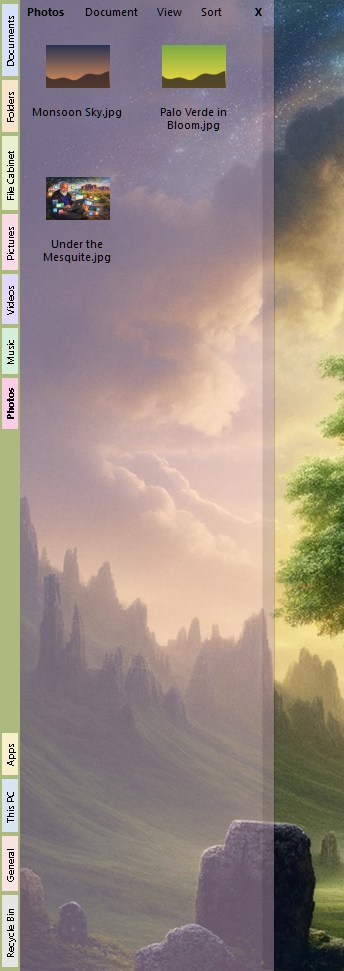
You aren't limited to the standard tabs. Any folder can have a launcher of its own, and there
is no limit on how many are open. Each is another tab, added at the end of the top group, named
for its folder. There are several ways to open one:
- Open Launcher. Right-click a folder, in a listing or on a tile, and choose Open
Launcher. In a launcher pane you can also select one folder and use its Document
menu. A shortcut to a folder counts. This opens the pane and pins it.
- Double-click a folder of folders. In a launcher, double-click a folder that holds
only folders and shortcuts, in any mix, and it opens as a launcher in its place, unpinned.
That's how the Mail and Calendars folders open. A folder with any other file in
it opens in the View instead, as a listing.
- Shift+double-click. In a folder open in the View, hold Shift and double-click a
folder row: it opens in the View and goes on the strip as a launcher, unpinned.
Shift+click on the Up arrow does the same for the folder above.
- A music library. Open Launcher on a scanned library's root opens its tab, and
two more beside it: Artists and Albums, listed from the library, so they're
quick.
- A video or a recording project. These open as a film or recording; Open
Launcher on one shows what's inside as an ordinary folder.
If that folder already has a launcher, you don't get a second: its tab simply comes forward.
Two folders of the same name look alike on the strip, which is what the pointer-over path is
for.
Pinned and Not
A pinned launcher comes back every time Desktop Minder starts. Right-click a folder's tab
and tick Pin to This Desktop to pin one, or to let it go. A launcher that isn't pinned
is there for as long as it's showing: next time, it returns only if it was the one on show when
you left, and not if it had been slid away. Each desktop keeps its own, in its own folder's
settings, so a desktop in OneDrive has the same launchers on your other computer.
Closing One
A folder launcher's bar has an X, Close this pane, and a Close All; the
tab's right-click menu has Close and Close All, and lists every open folder
launcher by name, as Close and the name. Close All closes only folder launchers, never the standard tabs, which you
put away by unticking. Closing a launcher also unpins it, so it won't come back. If you delete
a folder in Desktop Minder, its launcher closes and goes; if the folder simply vanishes—a
USB stick pulled, a share down—the tab closes but the pin stays, and it returns when the
folder does.
Using a Launcher
Tiles
A single click selects a tile; the Properties panel on the right-hand strip describes
it. Double-click opens it in the View, or runs it, as appropriate; if the same file
is already open on another desktop, that desktop comes forward instead. Ctrl+click and
Shift+click add to the selection and take a range, and a rubber band dragged over
empty space sweeps up a group. To rename a tile, click its name once it's the only one
selected (clicking the icon only selects), or right-click and choose Rename; the name
opens in place and Enter keeps it. Right-click a tile for the same menu as anywhere else:
Open, Run, Shows As, Uncompress, Compress, Cut,
Copy, Paste, Rename, Delete, Properties, and whatever the
kind of file adds.
The Bar
Across the top of a pane: the folder's name, in bold, then these:
- Document offers New (Folder, Text, Audio, Video,
Word Document; described under Folder
Documents), Create Shortcuts (Web Site... and Program...), Paste,
the menu for whatever is selected, Move to and Open Launcher. A new file opens in the
View, ready to write in, with its tile's name ready to type. Move to lists
every desktop and moves the selection into that desktop's folder.
- View offers Large Icons, Medium Icons, List and List
Top—a card as wide as the pane, its name on top and the first few lines of
the file underneath, or a small picture for a picture; it's what the Notes pane uses—then
Show Hidden and Extensions, which is Use Default, Always Show or
Never Show.
- Sort offers Name, Type, Date Modified and Size (the last two
start with the newest or biggest), Ascending and Descending, and Folders
First.
- The trash can, which is gray until something deletable is selected; the Delete key
does the same. It asks nothing where there's a Recycle Bin, and asks first where there isn't.
Each launcher remembers its own view, sort, direction and hidden and extension choices, even
after it's closed and opened again. Refresh, or F5, is on the View menu, though a pane
keeps itself up to date.
Dragging Between Panes
Drop on a folder tile, which lights up, and the things go into that folder: a plain drag moves,
Ctrl copies, Ctrl+Shift makes a shortcut. Between panes of the same folder, though,
Documents, Folders and Apps, nothing moves. The folder is the same;
what changes is which pane you want the thing in, and the folder just remembers. It's kept in
the desktop's settings, and the item appears in the new pane. Drop on the Recycle Bin and
the originals are recycled.
This PC and the Recycle Bin
This PC lists drives, network drives and devices. In the icon views, each disk, stick
and share has a thin bar under its icon showing how full it is: blue, and red once less than a
tenth is free. Rest the pointer on a drive for the words, such as 98.4 GB free of 465 GB;
the bars are read again every twenty seconds or so while the pane is showing. Rename a drive to set its label, and
double-click Desktop Minder Settings to open the program's settings in the View. Neither
it nor Windows Settings takes drops. The Recycle Bin has a Bin menu in place
of the others, with Restore, Restore All and Vaporize All, which asks before it
deletes anything for good; its trash can deletes the selection for good, asking first.
Not Yet
- Going up or back inside a launcher. A launcher stays on its one folder;
to go deeper, open another launcher on it (or open the folder in the View).
- Keyboard control of tiles: arrow keys, Enter to open, Ctrl+C and Ctrl+V. The mouse, the
menus, F5 and Delete work.
- Small Icons, which an older version had.
- Explorer's own menu, with the entries other programs add to it.