|
|
|
|
Page Views: 940 |
| Hashtags: #VisualBasic60 #ProgrammingforMicrosoftWindows |
| Chapter 1 of this free online course in Visual Basic 6.0. |
| Estimated reading time: 14 minute(s) (3108 words) |

It's a lot easier, now. All modern development tools are bundled into single
programs known as Integrated Development Environments, or
IDEs.
The IDE manages all that complexity for you: the editing, compiling,
associating visual components with code blocks, and more.
However, you are still on your own for making softball practice.
Visual Basic
Visual Basic, a variant of the ancient BASIC language developed at Dartmouth
College, was invented by Allan Cooper Associates in 1990 and quickly sold to
Microsoft's applications department. Why, applications? Because the languages
department, run by zealous C/C++ programmers, wouldn't even look at a
product based on the BASIC language (which, admittedly, did not have a good
reputation).
It was just as well; the applications department quickly saw the value in the
package, and made it the macro language of all Microsoft
applications. In addition, several Microsoft applications are written in
it.
The subset of VB used as a macro language, is known as Visual Basic
for Applications, or VBA. And yet, in some ways VBA is a superset
of VB; for each implementation of VBA includes specialized statements for
dealing with that particular environment. For example, VBA in Excel includes
statements for working with spreadsheets, while VBA for Word includes statements
for formatting paragraphs.
Even the Office applications' macro editor, is a cut-down version of the full
Visual Basic IDE, so if you learn the full IDE, you will have little trouble
adjusting to the macro editor when you want to work with VBA.
Visual Basic vs. VBA

How can you choose Visual Basic over VBA? Or, should you?
Visual Basic is compiled
to fast, native machine code; so VB apps run much faster than the
same code written in VBA. Also, VB apps can run by themselves; they
do not require a copy of Word or Excel. In addition, you can create
ActiveX components and controls in VB, which can be used in
VBA. So, VB is more for programmers, VBA more for advanced
application users.
VBA isn't generally used to create
applications; instead, it is used to enhance existing
applications, like Word, Excel, or PowerPoint. It is interpreted,
not compiled; so it is easy for a novice to debug. Thus, it lends
itself more to one-person, non-commercial solutions to individual
problems, rather than general-purpose, salable applications.
Buying Visual Basic
If you don't own Visual Basic and would like to buy a copy, you'll find you
have more choices than you would visiting a Haagen-Daas shop. The following are
the purchase options as of this writing, distilled from Microsoft's web site:
| Edition |
Upgrade |
Full |
| Learning Edition |
$59 |
$109 |
| Professional Edition |
$279 |
$549 |
| Enterprise Edition |
$759 |
$1,299 |
| Visual Studio 97 Professional |
$549 |
$1,079 |
| Visual Studio 97 Enterprise |
$1,079 |
$1,619 |
| MSDN Universal Subscription |
$1,999 |
$2,499 |
The Learning Edition is suitable for a person who wants to play with Visual
Basic, but it's too stripped down to be useful. The Professional Edition is
suitable for anyone with a garage programming shop; you can create real,
professional-quality applications with it. The Professional Edition is
sold both by itself, and as part of Visual Studio.
Visual Studio includes, not
only Visual Basic, but also Visual C++, Visual FoxPro, Visual J++,
Visual Interdev, and a number of other development tools. And, if
that's not enough for you, buy the MSDN Universal Subscription: It
not only contains all the products included with Visual Studio, but
Microsoft Office, Microsoft BackOffice, Microsoft Project, all
current versions of Windows, and, for all I know, IBM OS 370.
Starting Visual Basic
If Visual Basic was installed as part of Visual Studio 97, it can be started
by expanding the Visual Studio 97 menu group, then clicking on Microsoft
Visual Basic 6.0.
If Visual Basic was installed as a stand-alone program, it can be started
by expanding the Visual Basic 6.0 program group, then clicking on
Microsoft Visual Basic 6.0.
Creating a New Project
When Visual Basic first comes up, it displays the New Project dialog:
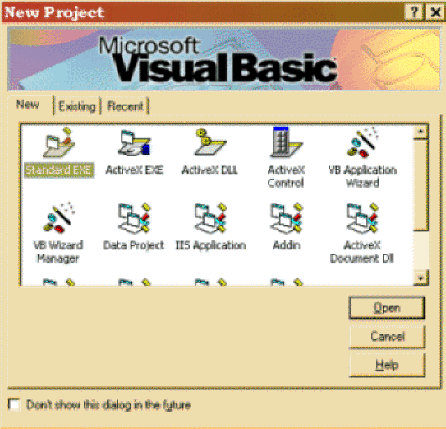
In addition to the "New" tab, you can open existing projects by clicking on
the "Existing" or "Recent" tabs.
The items on display under the "New" tab are template projects. These
are pre-defined project types, head starts, on projects you might wish to
create.
In a later section, we'll look at what each of these projects types has for
you. For now, we'll concentrate on the Standard EXE, the most basic of Visual
Basic project types.
A Standard EXE project gives you one Form. A Form is what VB calls a
regular window. IT can serve as the
frame window for your application, or as a dialog. Generally, the first form
in your application, will wind up being your frame window.
Although a Standard EXE project begins with just one form, it is certainly
not limited to that! Your project can (and probably will) also contain Class
modules; it may also include UserControl modules and may even have a global code
Module or two.
Initial IDE Layout
When you run Visual Basic for the very first time, and select a Standard EXE
as your project type, you will see something like this on your screen:
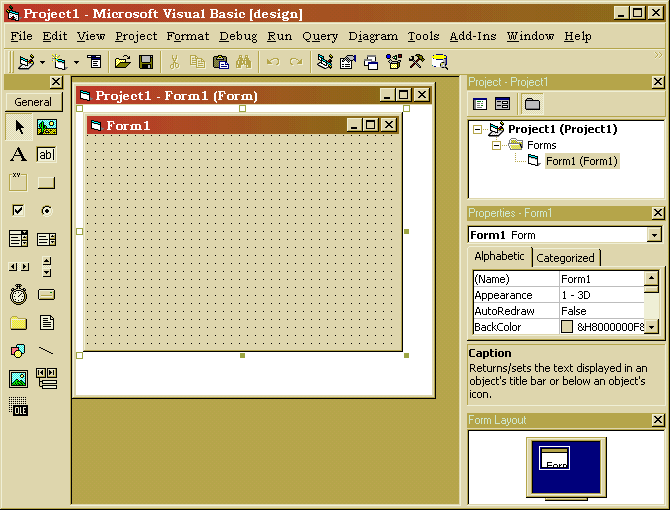
From left to right, top-to-bottom, these are the components:
Menu Bar, Toolbar
Serve the usual purpose of Windows' menu bars and toolbars. I'll detail the
commands separately. The toolbar is "dockable", which means you can "tear it
off" from its usual position and place it wherever you find it most convenient.
Toolbox
This dockable toolbar contains icons for all the "controls" you can place on
a form. These include command buttons, labels, and boxes for text input; I'll
describe them all in the next chapter.
Form Designer
This is the visual editor for the appearance of your form. In addition to the
form designer, you can also open a form's code window. Each form in your project
has its own design window; and you can open more than one at a time. The same is
true of the code windows.
Visual Basic is a Multiple Document Interface (MDI) application, which means
that all these designers and code windows are actually "views" that share the
rectangle space within the frame window not occupied by toolbars, menu
bars, and the like. As you can see, there isn't a lot of room for them in the
default Visual Basic configuration!—But, we can fix that, as you'll see,
shortly.
Project Explorer
This hierarchical view of your project's components is, optionally, divided
into "folders" for each component type: Forms, Classes, and so on. There's a
button on the explorer that toggles whether you see the folders or not.
Please note that these "folders" have nothing to do with hard disk folders,
and you can't tell, by looking at the Project Explorer, where these
components are physically located. We'll discuss how to specify the location of
these components, shortly.
Properties Window
The various components in your project—forms, controls, and so on—all have
properties that you are allowed to change. Such properties include the caption on a
form, the text in a label, and the contents of a list box.
The properties window allows you to examine and/or change these values.
Form Layout Window
This window allows you to graphically instruct Visual Basic just where
on the end user's screen you want a form to appear.
Dockable Views
The components just described are all Dockable Views. That means they
can be "torn off" from their docked location along the borders of the frame.
To tear off a view, simply place your cursor over the view's caption bar,
hold down your left mouse button, and drag the view to its desired location.
Alternatively, you can double-click the caption bar, and the view will
spontaneously undock (to the last undocked location it held—it remembers!).
When a view is undocked, it has the "always-on-top" attribute. That it, if it
lies over your Form designer, for instance, you cannot bring your Form
in front of it. Your Form designer may be active, but the undocked
view will hide part of it. To avoid this inconvenience, see the tip. below.
Right now, you are looking at Visual Basic in design mode. If you
choose the Run..Start command from the menu, that will run your
"application" (it doesn't do much, yet!) and switch VB into run mode.
Visual Basic keeps separate lists of which views are visible, for run mode and
design mode. In run mode, for example, you can't change properties; so the
Properties Window is, by default, closed. On the other hand, another view called
the Immediate Windowis often useful, so, by default, it shows up.
To change which views are visible during each mode, simply enter that mode,
and show or hide the various views, as desired.
Immediate Window
The views that don't, by default, show up in run mode, are mostly useful only
when debugging running code. However, one exception is the Immediate Window.
This view allows you to enter any legal VB statement, including the
invocation of one of your own procedures, and watch it run…without
having to run the entire application!
It's a great way to test small pieces of code.
Editor Options
Undocking views isn't the only way you can customize the Visual Basic
development environment.
The Tools..Options command brings up a six-tabbed dialog
box. We'll look at the just a few of the more important options.
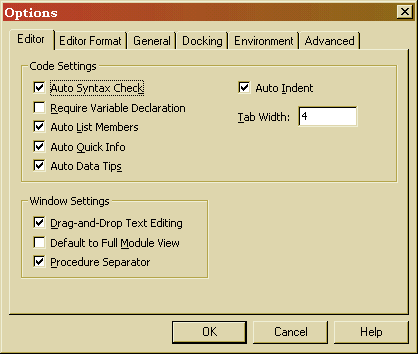
On the first page, labeled "Editor", there are three checkboxes
of significance.
Auto Syntax Check
As you type your Visual Basic code, VB will check on a line-by-line basis,
each time you go to a new line, to verify that your syntax was correct. While
this can't guarantee a correct program, it does eliminate wasted compiles due to
most simple syntax errors.
Sometimes, you may wish to click on another line in your code (perhaps to
copy something). When you leave a line before it's completed, you'll get an
error message; just click the OK button and continue on your mission.
Eventually, you will become expert in VB syntax, and these interruptions will
become more annoying than helpful. When that happens, come back to this dialog
and uncheck "Auto Syntax Check." For now, though, leave it checked.
Require Variable Declaration
This one requires a little explanation.
The "Require Variable Declaration" checkbox is actually a lie. It doesn't,
inherently, cause the Visual Basic compiler to require variable declarations!
Rather, it causes an Option Explicit statement to be included at the top
of all new code modules. It does not alter existing modules!
So, if this checkbox is not set on your computer right now, the form you got
with the Standard EXE project will not have an Option Explicit statement.
Of course, you can always add one manually; and you can always erase one, if
you wish.
Now, in this course, I insist you declare your variables; so, please,
check this box.
Default to Full Module View
When you open a code window, Visual Basic gives you the choice of viewing the
code in the entire module, or just looking at one procedure at a time. There are
times when one display will be more useful than the other. However, I find
Procedure View to be more supportive of object-oriented programming, most of the
time. I recommend you de-select this checkbox.
It is easy, on a window-by-window basis, to switch to either Procedure View
or Full Module View, whenever you wish.
The General Options
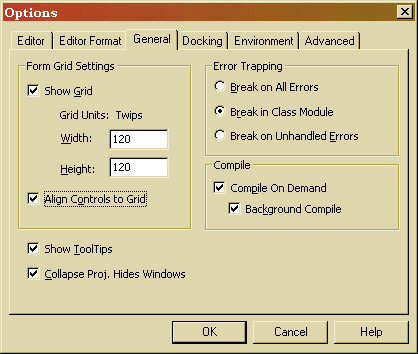
When Visual Basic was first introduced, it used a "snap-to-grid"
system of assisting programs to line controls up on forms.
Unfortunately, this system never worked very well (mostly because
people don't naturally line up text-containing controls by their
upper left-hand corners, but by the baseline of the text).
We now have better ways to align controls, You can turn off the grid by
unchecking both "Show Grid" and "Align Controls to Grid" on the General
page of the options dialog.
The Environment Options
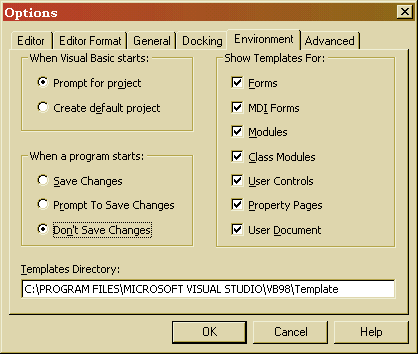
On the Environment page, change the "When a program starts"
option to "Save Changes" or, at least, "Prompt to Save Changes".
While the Visual Basic development environment is very stable, you are still
developing—and you could crash the system. You wouldn't want to lose all
your work up to that point, would you? If not, checking one of these two options
gets Visual Basic to save your work for you, every time you test your code.
Saving Your Options
All the options we described in this chapter, are not saved until you've
closed Visual Basic. That has two ramifications:
If you open a second copy of VB while the first, in which you changed
options, is still running, your changes will not show up in the second copy.
If the power goes off or the computer otherwise crashes before your Visual
Basic session is closed, any options you changed will not be saved.
It therefore makes sense, once you've gotten the options and view positions
set like you want them, to close VB and open it again if you wish to continue
working.