|
By: Paul S Cilwa |
Posted: 3/23/2026 |
|
Page Views: 120 |
| Hashtags: #Software #Images #ImageMagick #MagickNET #VBNET #Architecture |
| A non-technical look at the technology behind Aspecta's image processing. |
| Estimated reading time: 4 minute(s) (816 words) |
The Engine Under the Hood

Aspecta is built with VB.NET and uses
ImageMagick for all its
image processing, accessed through the
Magick.NET
wrapper library. ImageMagick is an open-source image processing
toolkit that's been around for over 30 years and is used by
millions of people and organizations worldwide. It's the same
engine behind countless web services, command-line tools, and
desktop applications that handle image conversion.
Your Originals Are Safe
Aspecta never modifies your original file. When you drop an
image onto the app, it reads a copy into memory and works
exclusively with that copy. Every adjustment you make—cropping,
color shifts, format changes—is applied to a fresh copy
of the original each time, so there's no accumulation of
quality loss from repeated edits. The original file on disk is
never touched until you explicitly click Convert or Convert As,
and even then Aspecta creates a new file rather than
overwriting the original.
How the Preview Works
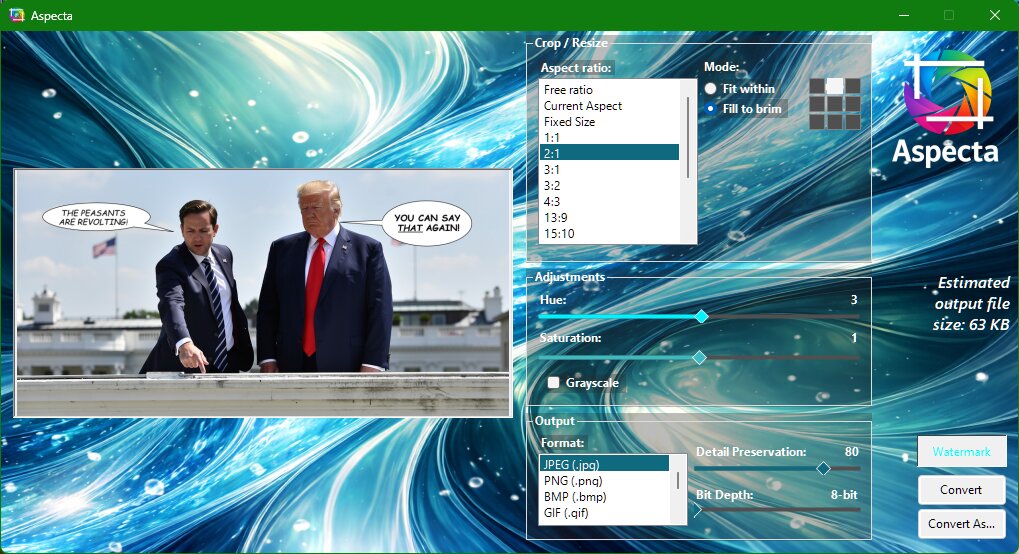
The live preview isn't a rough approximation—it's the actual
output image, rendered in real time. Every time you change a
setting, Aspecta starts from a fresh copy of the original,
applies all your current settings (crop, resize, hue, saturation,
format), and displays the result. This means what you see in
the preview is exactly what you'll get when you save.
Fit vs. Fill: The Math
In Fit mode, Aspecta calculates the largest version of
your image that fits entirely within the target dimensions. It
compares the aspect ratio of your image to the aspect ratio of
the target, then scales based on whichever dimension is the
limiting factor. The result is always the complete image, with
no cropping.
In Fill mode, Aspecta does the opposite: it scales the
image so that it completely covers the target area, then crops
away the excess. The orientation grid determines which part of
the image is kept. If you select the center cell, the image is
cropped equally from both sides. If you select a corner cell,
that corner is anchored and the opposite side absorbs all the
cropping.
File Size Estimation
The estimated file size you see in the output panel isn't a
guess based on pixel count and format. Aspecta actually encodes
the image in memory using the selected format and quality
settings, measures the size of the resulting byte stream, and
displays that number. This means the estimate is as accurate
as the final file will be—because it is the final
file, just not yet written to disk.
The Controls
Aspecta's interface is built from custom controls in the
CilwaLib library: Slider handles the quality, hue,
saturation, and bit depth sliders (with labeled tick marks
and accent colors that shift to reflect the current setting).
OzListBox draws the format and aspect ratio lists. OrientationGrid
is the 3x3 crop anchor selector. ShadowLabel provides the
text overlays. These controls are shared across several of my
applications, so improvements in one benefit all of them.
Settings Persistence
Aspecta saves your conversion settings—format, aspect ratio,
quality, mode, hue, saturation, grayscale, orientation, and
output folder—to the Windows Registry via the SystemRegistry
class. The next time you launch Aspecta, those settings are
restored automatically. This is what makes batch processing
seamless: configure once, then just keep dropping files.
Auto-Updates
When Aspecta starts, it checks for a newer version through the
UpdateChecker module. If one is available, you're prompted to
download and install it. This happens in the background after
the form is visible, so it never blocks startup.
Command Line and Batch Processing
Aspecta isn't limited to the GUI. The CommandLineArgs module
parses command-line parameters so you can script conversions,
run headless batch jobs, or let an AI assistant drive the
whole thing without ever opening a window. Drop multiple files
on the desktop shortcut and Aspecta batch-converts them all
using your saved settings. If no settings exist yet, it prompts
you to configure them first.
Clipboard Paste
Press Ctrl+V when the drop zone is empty and Aspecta loads
whatever image is on the clipboard—screenshots, snips,
anything. It saves the clipboard data to a temporary PNG,
loads it through Magick.NET, and treats it like any other
source image. The button labels switch from "Convert" to
"Save" and "Save As" since there's no original file to
convert alongside.
Format Support
Aspecta can read over 30 image formats thanks to ImageMagick's
extensive codec library. The formats available for writing are
a smaller subset—the ones most people actually need:
JPEG, PNG, BMP, GIF, WebP, AVIF, TIFF, TGA, ICO, JPEG 2000,
and PDF. Reading support extends to HEIF/HEIC (the format
iPhones use), PSD (Photoshop files), RAW camera formats from
most manufacturers, and SVG vector graphics, among others.