|
By: Paul S Cilwa |
Posted: 10/5/2026
Updated: 10/27/2026 |
|
Page Views: 101 |
| Hashtags: #Software #Windows #Shell #DesktopMinder #Desktops #Launcher #Wallpaper #Plugins #Themes #Icons |
| A tour of the Desktop Minder screen: the row of desktops, the launcher panes, the View in the middle, the strip of panels down the right, icon themes, and what happens when it is the Windows shell. |
| Estimated reading time: 9 minute(s) (2126 words) |
The Desktops
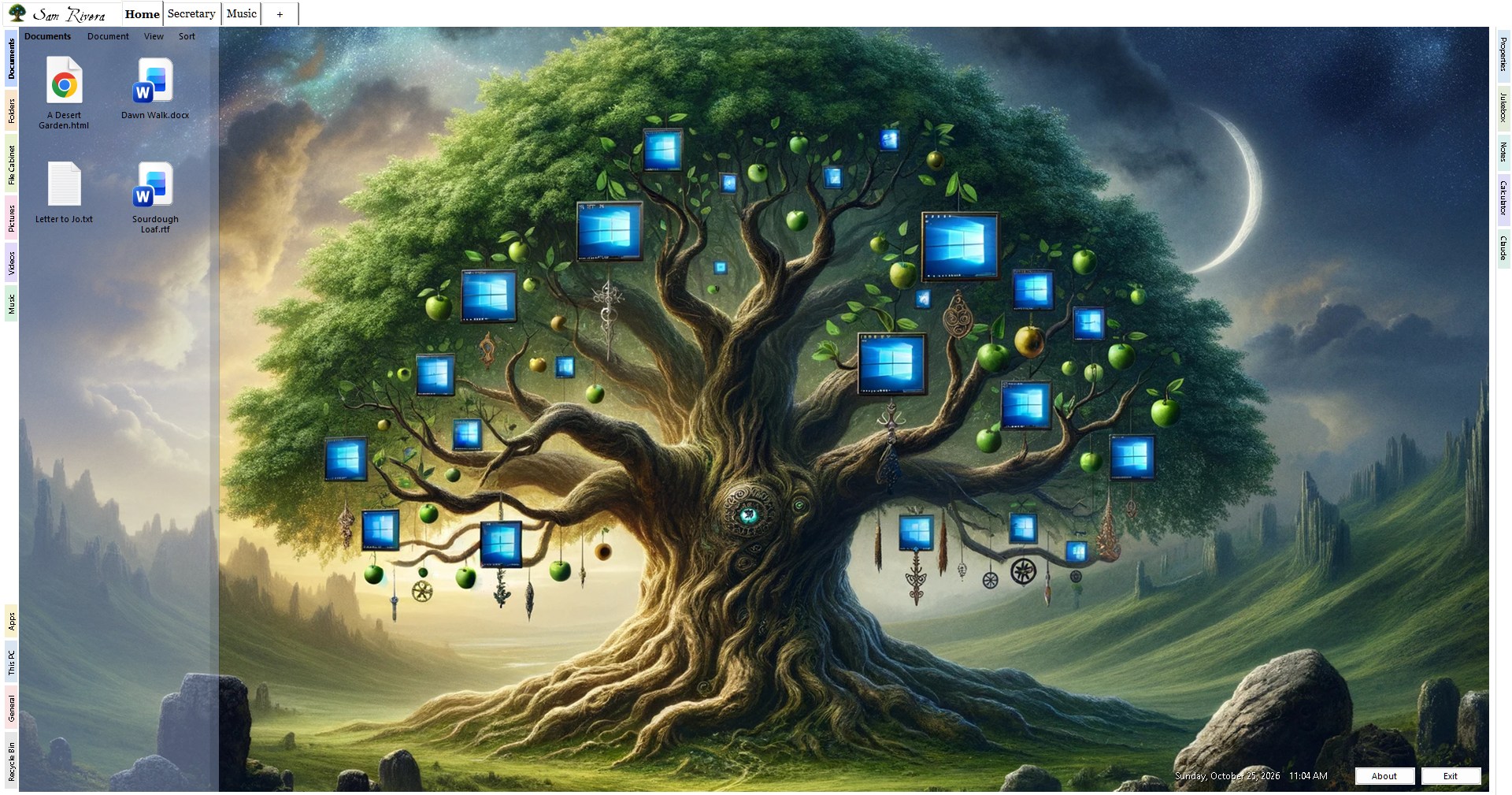
A fresh installation offers Home, Internet, Social,
Shopping, Music, Places, Pictures,
Projects, Videos and My Web Sites, each with a wallpaper to
match. You can add your own with the + tab, rename any of them, and give
each a different picture, or a plain color, or none. The strips along the top
and down both sides wear the color of a Windows title bar, your accent color made
paler, and change the way a title bar does when another program comes to the
front. The Settings sheet has a Colors section if you'd rather choose
them yourself.
Under the hood, there is nothing to it. Your real Desktop folder is
Home. Music, Pictures and Videos are your Windows folders of those
names, wherever you've put them. The others are folders beside your Desktop
folder—Bookmarks, Social, PIM, Projects,
Websites—in your OneDrive if that's where you keep things. That means File
Explorer sees them, OneDrive syncs them, your backup program backs them up, and if
you ever stop using Desktop Minder, every file is exactly where you'd expect to find
it. All the program adds is a small text file in each desktop's folder,
Desktop.dmini, holding its wallpaper, how its panes are set out, and what was
left open on it, plus a short list in the registry of which desktops there are. The
file is in the folder on purpose: if the folder is in OneDrive, the desktop looks the
same on your other machine, instead of having to be set up twice.
A few desktops come with something in them. Internet starts out with your
bookmarks, gathered from every browser on the machine—Chrome, Edge,
Firefox, Brave, Vivaldi, Opera—with no address twice, as shortcuts in the
folders you'd already sorted them into. Social is your PIM folder: a
Mail folder to keep mailboxes in, a book of Contacts, and your
Calendars, plus Web Mail, Web Calendars and Web Contacts
folders of shortcuts to Gmail, Outlook.com, Google Calendar and the rest, for the
services you'd rather use in a browser. Home has Set Up Email, the one
icon that has to exist before a mailbox can.
A desktop's settings are a page of their own, opened from its tab: its name, its folder, its
wallpaper, and which tabs are showing on either side. Nothing waits for an
OK.
The Left Strip: Launchers
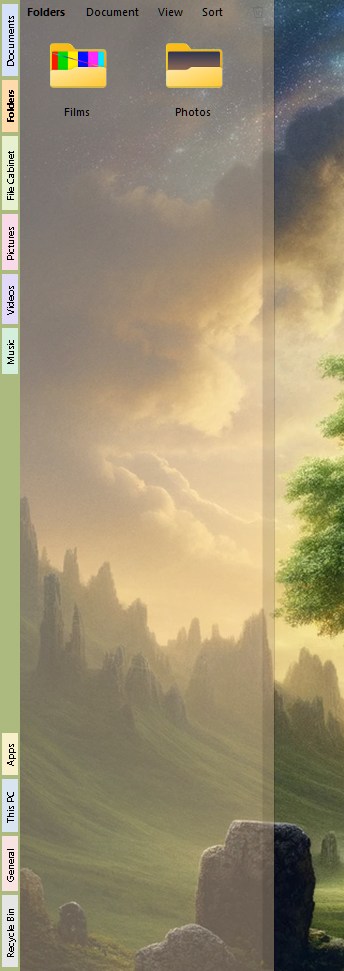
Down the left side of every desktop is a strip of tabs, each opening a
launcher pane. The first three—Documents, Folders and
Apps—are this desktop's folder shown three ways, so the programs
aren't mixed in with the documents. Each pane is a wall of icons you can sort,
resize, and view as big tiles, a list, or a list with a preview of each
file's first lines. Drag something from one of those panes to another and nothing moves
on disk; the folder just remembers which pane you want it in.
After those come File Cabinet, Pictures, Videos and Music, which
are the Windows folders of those names, This PC, with every drive, and the
Recycle Bin, which takes a drop as a delete. Downloads, PIM and
Windows Settings—every page of the Windows Settings app, filed under its
category, each with the same icon Settings itself draws—are there too, once you
switch them on. And any folder can be put on the strip as a pane of its own—choose
Open Launcher, or Shift double-click it in a listing—so the three or
four folders you live in are one click away on the desktop they belong to. The
Launchers page
has all of it.
The Middle: the View

The middle of the screen is the View, where the one open document sits.
Its name is on a tab at the top; beside that are tabs for what the document can
do—Look and Change for a picture, Read and Edit for
text, Watch for a film—or, for a collection, for the parts it's made
of: a mailbox's baskets, a music library's Artist, Genre and Album.
At the far end is a close button. Under the name is a thin bar with Back,
Ahead and Up arrows and whatever buttons the document itself needs.
Back and Ahead work the way a browser's do, across everything: back out of the
folder you browsed into, then back to the picture you were looking at before
that, then back to the web page before that. Hold Back down and the
whole trail unfolds as a list. Open a picture from a folder's listing and
Ahead goes on to the next picture in it, like a slide show. Up goes up:
to the folder an item was opened from, or, from a web page, to the document you had
open before it. A document you leave isn't always thrown
away, either: a web page you were logged into stays logged in, parked out of
sight, and going Back takes it up where it was. Close one with its X, though, and
it's let go of entirely.
When nothing is open, the wallpaper shows through. That's deliberate. A desktop
with nothing going on should look like a desktop.
The Right Strip: Panels
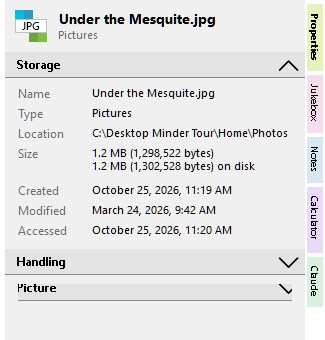
Down the right side is a second strip, shared by every desktop. Properties
describes whatever is selected in any pane, or open in the View, and some of what it
describes can be edited there. The Jukebox is the one music player, with its
queue; every track, album and music folder anywhere in the program feeds it with
Play > Now, Next and Last. Right-click the strip for the list
of everything that can go on it, and untick what you don't want.
After the built-in panels come the plug-ins you've switched on, and a few panels
that borrow a program of their own. Wikipedia is a small browser that goes
nowhere but Wikipedia, remembers the topics you've looked up, and comes back to the
article you were reading; any article can be popped out into the View as a document of
its own. Notes is sticky notes: a pane of text files, each tile showing its first
few lines, with New Note at the top. Calculator is Windows' own Calculator,
sitting in the strip, with all its modes. And Claude is the Claude app, the real
one, in the strip, or opened into the View when you want more room.
Along the Bottom

The clock in the footer opens a calendar. Beside it, when a copy or move is
running, a strip shows what's being copied and what's waiting its turn—because, unlike Explorer, Desktop Minder runs one file operation at a time,
so neither of two copies has to go at half speed. With nothing selected, the same
strip says how many items are in the folder you're looking at, how many of them are
hidden, and how much room is left on its drive. About and Exit sit at the
right.
Icons
Any picture can be put on any folder or shortcut: right-click, choose Choose
Icon..., pick the picture, done. A folder carries its icon inside itself, so it
keeps its picture when you move it, share it or sync it to another machine. Your icon
library lives in OneDrive, for the same reason: a shortcut points at its icon by
path, and OneDrive is the one place that has the same path on every machine you sign
into. A shortcut to a web site that has an icon in your library by its name—YouTube.ico, Amazon.ico—wears it without being told.
Themes
The pictures the program draws for its own things—your mailboxes and their
baskets, the messages in them, the settings tile—come in sets called
themes. The set that comes with Desktop Minder is called Gingerbread.
Camping is the first other one, drawn in the style of a trail map and a pocket knife,
and I'm having more made. Here are the folders of a mailbox, in each:
| Theme |
Mailbox |
Inbox |
Outbox |
Sent |
Drafts |
Unknown Senders |
Newsletters |
Spam |
| Gingerbread |
 |
 |
 |
 |
 |
 |
 |
 |
| Camping |
 |
 |
 |
 |
 |
 |
 |
 |
Each of those is a role, and every theme answers to the same ones, which is what lets
one stand in for another: the Mailbox is the account itself, Inbox is mail
arriving, Outbox mail waiting to go, Sent mail that's gone, Drafts
unfinished writing, Unknown Senders the strangers' basket, Newsletters the
subscriptions, and Spam the tin. A theme can also give a picture to a single
Message, a Newsletter issue, and a Slice—one piece of spam, because
one piece of junk mail wouldn't look like junk—and to the PIM, Mail,
Contacts and Calendars folders and the Desktop Minder Settings tile.
What a Theme Can Do
- Change those pictures, wherever they're drawn: on a tile, in a listing, on a
tab. The change is instant. The pictures are drawn inside the program, at whatever size
is wanted, so nothing is written into your mailboxes or folders, and File Explorer
shows what it always did.
- Start the desktop's colors. A theme may name the colors in the Settings sheet's
Colors section. Choosing the theme sets them, as a starting point: change one
afterward and it stays changed.
- Leave things out. A theme that has no picture for a role gets the Gingerbread
one for it. And your own picture beats the theme: an icon of the same name in your
icon library is used first, then the theme's, then the one that came with the
program. Brand pictures—YouTube, Amazon, Set Up Email—aren't themed at all,
and are the same in every theme.
Choosing One
Open the Settings sheet, from This PC, and pick from the Theme box at the top.
Themes come from plug-ins, so a theme has to be switched on in the plug-ins
list below it first, where it's marked as a theme; there's no restart needed for a
theme, though there is for any other kind of plug-in.
Making One
A theme is a folder of icons, a picture for each role, named for it:
Mailbox.ico, Inbox.ico and so on (or Rainbows-Mailbox.ico, if the folder
is called Rainbows; the name of the folder and the dash are ignored). One
256-pixel frame in each is enough. You can add a small settings file, Theme.dmini, naming
the theme and giving its colors. Then right-click the folder, choose Convert to >
Icon Library, and Move to Desktop Minder plug-ins on the result. What you get is one
file holding the whole theme, which holds no code and can't run anything.
Not Yet
- Wallpapers and fonts as part of a theme. Backgrounds belong to each desktop for now.
- Pictures for the kinds of document themselves—a film, a score, a track with no
cover—and for the buttons.
- A way to see which roles a theme has left out.
As a Window, or As the Shell
Desktop Minder can run two ways. As an ordinary program it's a window, with a
title bar and the usual three buttons, and Escape brings a full-screen
window back to a size you can see around. That's how to try it. Only one copy runs at a
time: start a second, and the first comes forward.
Registered as the Windows shell, it replaces Explorer entirely: no
taskbar, no Start menu, no desktop icons but its own. It fills the screen with
no border, because a title bar on the desktop would be something to minimize the
desktop by, which means nothing. The close button, which as a window just
closes, as the shell offers the choice it has to—sign out, restart, shut
down—since ending the shell ends your session. Where Windows' own ways of taking a
picture of the screen are Explorer's, Print Screen takes one of the whole screen and
Alt+Print Screen of the window in front; it goes into Pictures\Screenshots and onto
the clipboard.
The registration is per user, so another account on the same computer still gets
Explorer, and so do you, if you ever want it back. It's two ticks on the Settings
sheet: Start with Windows, and then Make Desktop Minder the Windows shell,
which can't be ticked until the first is. Nothing about installing the program does either
of them.