|
By: Paul S Cilwa |
Posted: 8/30/2017 |
|
Page Views: 4,480 |
| Hashtags: #Music #Ripping #Polishing #MP3Gain |
| How to use a free applet to normalize your digital audio albums to a common loudness, while retaining dynamic differences between tracks. |
| Estimated reading time: 2 minute(s) (447 words) |

MP3Gain analyzes and losslessly adjusts mp3 files to a specified target volume.
It does not simply do peak amplitude normalization. Instead, it performs statistical
analysis to determine how loud the file actually sounds to the human ear.
You may download MP3Gain
from SourceForge (an open source repository).
Once you've downloaded and installed MP3Gain and started it, you'll be presented with the applet's main screen.
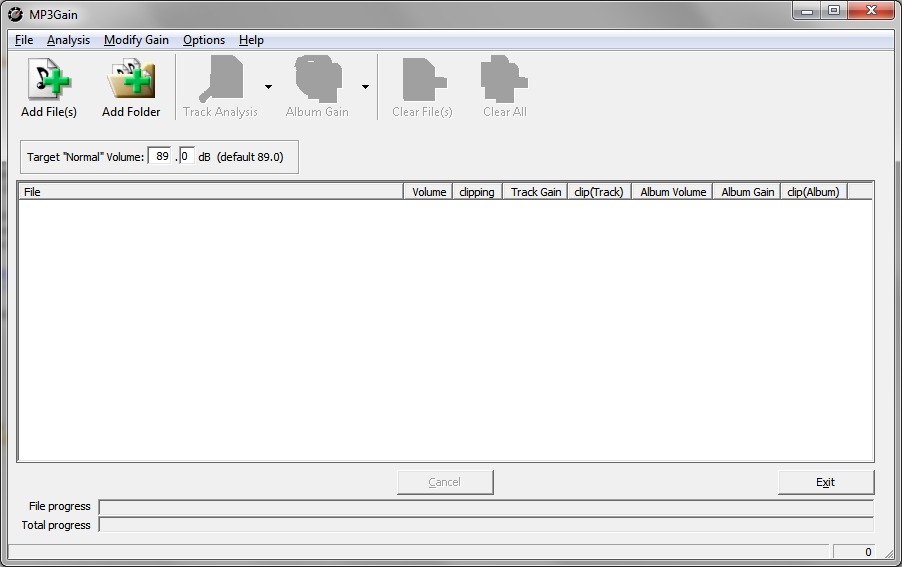
Note the Target "Normal" Volume value is set to 89 decibels. That's the default; you can use any
value you like but it's a good idea to leave a little headroom for the occasional cymbal clash or bass drum.
After having tried several values, I've learned to stick with the default.
MP3Gain does not re-encode your MP3 track. (MP3Gain only works on MP3s; hence the name.)
MP3s include a multiplier value in the file header; MP3Gain simply adjusts this value. Thus, while the track analysis
takes a few seconds, the actual update of the volume level takes just a moment, while the actual audio data itself
is unchanged.
You can use the buttons to bring up standard File Open/Folder Open dialogs. Or, you can simply drag files and/or folders
onto the screen.
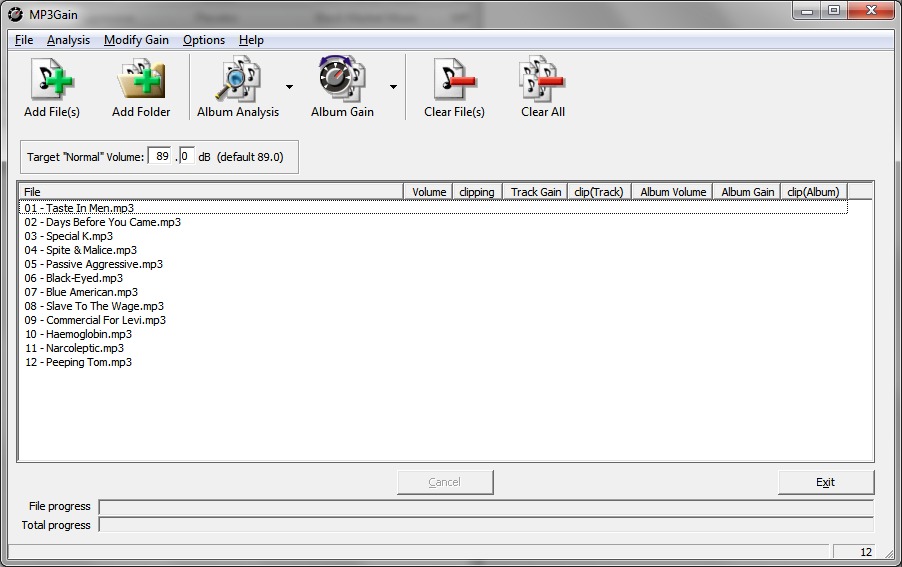
In the above screen shot, you can see the Album Analysis and Album Gain buttons. The little
down-arrow next to each button allows you to change the basic analysis mode. For example, you can
adjust the volume on a track-by-track basis. This can sometimes work on compilations, but I much prefer to
analyze and adjust the gain on the album as a whole. Do remember, however, that gain adjustments do not
alter the original audio data; it's easy and safe to re-normalize as many times as needed to get the result you prefer.
Clicking on …Analysis will check the current loudness, inspect the data, and give you a recommended gain change—but won't actually alter the volume. The …Gain button will do both. That's normally what I use.
However, for demonstration purposes, I will run the analysis first so you can see the results.
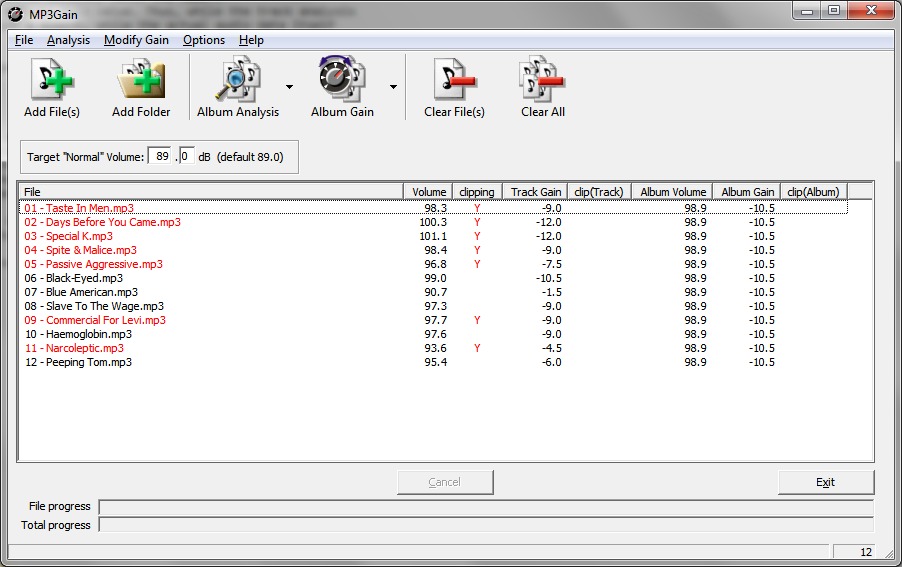
This is a fairly common result; most albums are recorded at too high a volume for proper reproduction;
but consumers seem to like their music loud.
Clicking the …Gain button finishes the job.