|
By: Paul S Cilwa |
Posted: 5/7/2024
Updated: 3/21/2026 |
|
Page Views: 777 |
| Hashtags: #ImageConversion #JPG #AVIF #WEBP #VBNET #MagickNET #CilwaLib |
| Free (and ad-free!) simple drop-and-convert app to make JPG copies of almost any visual format. |
| Estimated reading time: 4 minute(s) (894 words) |

Why JPG?
The JPG format has been around since the early '90s, but
it's still one of the best choices for photographs and
everyday images. If you don't need transparency or
animation, JPG files are typically smaller than their PNG,
WEBP, or AVIF equivalents, and they're readable by
virtually every device and application in existence.
How to Use It
Run the installer (see Download
below). It doesn't create a Start Menu shortcut. Instead,
you'll find the shortcut right on your desktop.
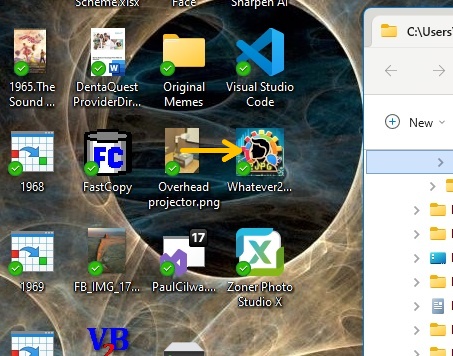
To convert a file, just drag and drop it onto the
Whatever2JPG icon. After a moment, your new .jpg
will appear in the same folder as the original image
file.
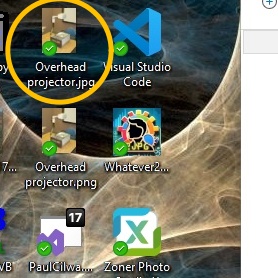
You can also drag multiple files at once, or even drag
files onto the icon from different folders—each
output file lands next to its original.
Right-Click Context Menu
The first time Whatever2JPG runs, it registers a
"Convert to .jpg" context menu item in File Explorer for
every supported format. After that, you can right-click
any PNG, BMP, GIF, TIFF, WebP, or AVIF file and choose
"Convert to .jpg" without ever opening the app
yourself.
The registration is per-user (stored under
HKCU\Software\Classes\SystemFileAssociations)
and updates itself automatically if the app moves to a
new location.
Double-Click
If you double-click Whatever2JPG without dropping a file
on it, it shows a brief info dialog explaining how to use
it and listing the supported formats.
Supported Formats
Whatever2JPG handles two groups of input formats using
different conversion engines:
- System.Drawing—PNG, GIF, BMP, TIFF,
and other formats supported natively by .NET's
GDI+ layer.
- Magick.NET—WEBP and AVIF, which require the ImageMagick
native libraries for decoding.
Download
If you'd like to use Whatever2JPG yourself, you can
download the installer below. Fair warning: because I
refuse to pay hundreds of dollars a year for a
code-signing certificate, Windows will throw up one of
those scary "unknown publisher" warnings when you run the
installer. While I agree we need ways to prevent bad
actors from distributing malware, I'd personally rather
see that handled by law than by private corporations
deciding who's trustworthy enough to write software.
In any case, you're welcome to browse the 2,100+ pages on
this site to satisfy yourself that I'm not, and never
have been, one to intentionally cause harm to any
being.
Architecture
Whatever2JPG is a .NET 10 console application written in
VB.NET with a WinExe output type (so no console window
flashes). It references
CilwaLib
for its string extensions (Dequote,
BaseName) and uses
Magick.NET
for WEBP and AVIF decoding.
The entire app is a single module,
ResizedPhotos, with these methods:
- Main—registers the context menu,
then either shows the info dialog (no arguments)
or iterates over dropped files and calls
Convert2JPG for each one.
- EnsureContextMenuRegistered—checks
each supported extension's Registry key under
HKCU\...\SystemFileAssociations and
creates or updates the "Convert to .jpg" shell
command pointing to the current exe path.
- Convert2JPG—checks the file
extension. WEBP and AVIF files go through
Magick.NET; everything else goes through
System.Drawing's GDI+ encoder at 100% quality.
- ConvertWithMagick—uses
MagickImage to decode the input and write
a JPEG at 95% quality.
Key Code: Startup
On startup, the context menu is registered (or verified),
and then the app either shows an info dialog or converts
the dropped files:
Sub Main()
EnsureContextMenuRegistered()
Dim CLargs() As String = Environment.GetCommandLineArgs
If CLargs.Count <= 1 Then
MsgBox("Whatever2JPG converts image files to JPEG format." &
vbCrLf & vbCrLf &
"To use: drag and drop any supported image file " &
"onto this program, or right-click a supported " &
"image in File Explorer and choose ""Convert to " &
".jpg""." & vbCrLf & vbCrLf &
"Supported formats: PNG, BMP, GIF, TIFF, WebP, AVIF",
"Whatever2JPG")
Return
End If
For I As Int16 = 1 To CLargs.Count - 1
Convert2JPG(New IO.FileInfo(CLargs(I).Dequote))
Next
End Sub
Key Code: The Converter
The core conversion logic decides which engine to use
based on the file extension, then writes the JPG next to
the original file:
Sub Convert2JPG(OriginalFile As IO.FileInfo)
Dim NewFileName As String = OriginalFile.DirectoryName & "\" &
OriginalFile.BaseName & ".jpg"
Dim ext As String = OriginalFile.Extension.ToLower
If ext = ".webp" OrElse ext = ".avif" Then
ConvertWithMagick(OriginalFile.FullName, NewFileName)
Else
Dim Photo As Image = Image.FromFile(OriginalFile.FullName)
Dim jpgEncoder As ImageCodecInfo = GetEncoder(ImageFormat.Jpeg)
Dim myEncoder As System.Drawing.Imaging.Encoder =
System.Drawing.Imaging.Encoder.Quality
Dim myEncoderParameters As New EncoderParameters(1)
Dim myEncoderParameter As New EncoderParameter(myEncoder, 100L)
myEncoderParameters.Param(0) = myEncoderParameter
Photo.Save(NewFileName, jpgEncoder, myEncoderParameters)
End If
End Sub