|
By: Paul S Cilwa |
Posted: 10/30/2026
Updated: 10/30/2026 |
|
Page Views: 2 |
| Hashtags: #Software #DesktopMinder #Settings #Preferences #Colors #Theme #Plugins #Updates #Extensions #AccentColor |
| Every setting in Desktop Minder: a desktop's own sheet (name, folder, background, side tabs) and the program's sheet (extensions, plug-ins, theme, colors, compressed files, numbering, updates, Windows), and where each one is kept. |
| Estimated reading time: 11 minute(s) (2442 words) |

Opening the Settings
Both sheets open in the View, like any other document, and both are on the menu you get by
right-clicking a desktop's tab:
- Desktop Settings... opens the sheet for that desktop. Ctrl+, (Ctrl and the comma
key, as in most programs that have preferences) opens the same sheet for the desktop you are on.
- Desktop Minder Settings... opens the program's own sheet. It is also a tile called
Desktop Minder Settings in This PC, and opening the file
Desktop Minder.dmini in your Apps\Cilwa folder shows the same sheet.
There is never anything to save. A tick, a color or a typed name is kept the moment
you make it. If a setting can't be written down (a read-only folder, say), the sheet reads it back and shows
what is really in force, so it never claims a change that didn't happen.
A Desktop's Settings
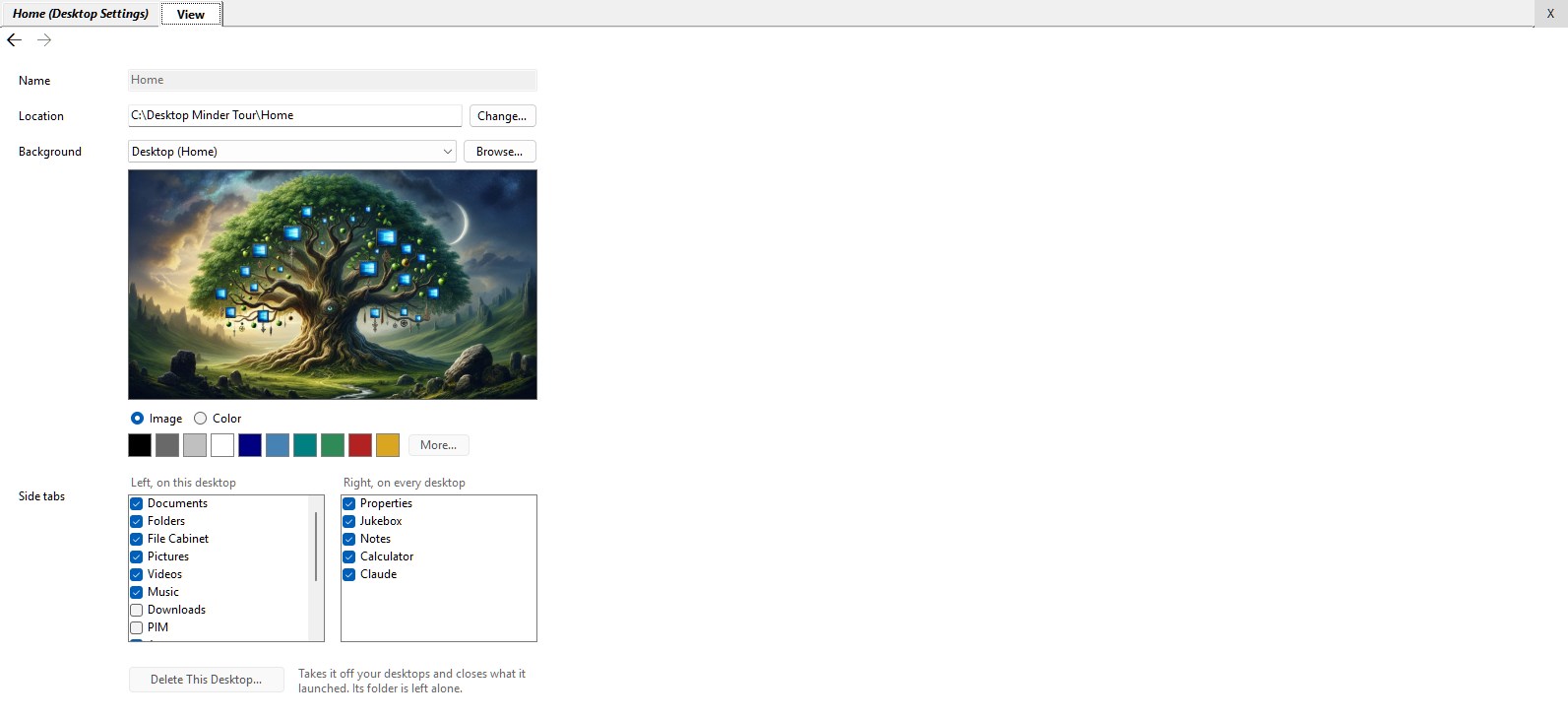
This is the sheet for one desktop. It is about the tab you right-clicked, not the one you happen to be on,
so you can open Desktop Settings... for any tab. Its title in the View is the desktop's name with
(Desktop Settings) after it. The Desktops page
says what a desktop is; this is what you can change about one.
Name and Location
Name is what is on the tab. Type a new one and press Enter, or click away; the tab changes
as you do. A name another desktop already has is refused, with the reason shown in red at the foot of the sheet.
Home keeps its name, so for Home this box is grayed. (Right-clicking the tab and choosing
Rename, or clicking the tab of the desktop you are already on, does the same thing.)
Location is the desktop's folder. Type a path and press Enter, or press Change... and pick a folder
(Make New Folder is offered there). The folder is made if it isn't there. Nothing is moved:
what was in the old folder stays in the old folder, and the desktop simply shows the new one. After a change the
sheet opens again for the new folder.
Background
The wallpaper behind the desktop. The picker is the same one the + page uses, and offers:
- Image: one of the pictures that come with the program, chosen from the list, with a small preview;
- Browse...: a picture file of your own. A copy is kept in the desktop's folder, so the original
can go wherever it likes afterwards. A file that can't be read as a picture is refused with a message;
- (none): no wallpaper, so the desktop shows plain Windows color;
- Color: a plain color, from a row of ten that are most often wanted or More..., which opens
Windows' own color chooser.
It is on the desktop the instant you choose it. Choosing Image after a color brings back the last picture.
Side Tabs
Two lists with a tick beside each tab that is showing. Left, on this desktop is the strip of launcher
tabs down the left of this desktop only. Right, on every desktop is the strip of panels down the right, which every desktop
shares, which is why the list says so. Tick a tab and it is on the strip; untick it and it is gone, before you let go of
the mouse. The same lists are on the strip's right-click menu as Standard Tabs and Side Tabs. What each tab
is, is on the Launchers page.
Deleting a Desktop
Delete This Desktop... does what the tab's Delete Desktop does: it asks first, then takes the desktop off
your tabs and off the + page's list, closes what it launched, and forgets its layout. The folder and everything in it
are left alone. Home can't be deleted, and neither can the last desktop that is left; the button is grayed, and
resting the pointer on it says why. If you want a desktop put away without forgetting it, use Close Desktop on
the tab menu instead.
Desktop Minder Settings
The program's sheet is one page, in this order from the top. Each group is its own heading here.
Folders
One box: Show extensions. It is what a folder does when it hasn't chosen for itself, and it starts
on, because that is how every listing looked before there was a choice. A single folder can choose differently on its own
View menu (Extensions) and keeps its choice; a folder whose choice happens to match
this one writes nothing down. An extension that neither Desktop Minder nor Windows recognizes is always shown, since it is the
only thing saying what the file is. The Folders page
has the rest of what a folder remembers.
Plug-Ins
A list of the plug-ins found, each with a tick. A plug-in is a folder holding a DLL of the same name, put in a
Plugins folder beside Desktop Minder or in Plugins under your Apps\Cilwa folder. Notes and Wikipedia
are the two that come with the program. Every plug-in starts off: code nobody asked for doesn't run. Ticking one takes
effect the next time Desktop Minder starts. The exception is a plug-in that is an icon library (marked theme in the list),
which has no code to start and applies at once. One that couldn't load shows why beside its name and can't be ticked. The
Notes page describes the first.
Theme
A drop-down of the themes there are. The one that comes with the program is called Gingerbread, and it is what you
have until you choose another. Any other theme is an icon library you have made a plug-in and switched on (above): it brings its own
icons, for mail among other things, and its own starting colors. Choosing one applies at once.
A theme is a starting point, not a leash. Its colors are written into the same settings the next section edits, so if you
then change a color it stays changed, and Default on a color puts back what Windows would use, not what the theme said. What
a theme keeps hold of is its icons, which are drawn from the library for as long as it is the chosen one. If you switch off the plug-in
behind the chosen theme, you are put back on Gingerbread. (Not to be confused with the Themes a web page can wear, which are
style sheets; those are on the Text page.)
Colors
Six colors, each a row: a swatch, what it is for, and a Default button that is grayed until you have changed it.
Click a swatch to choose another with Windows' color chooser.
| Color | What it paints | Until you choose |
|---|
| Active desktop border | The strips and tabs round the desktop that is showing | Your Windows title-bar color, made paler |
| Lettering on it | The names on those tabs | Black or white, whichever reads on the border |
| Inactive desktop border | The same, while another program has the focus | Windows' inactive title-bar color, made paler |
| Lettering on it | The names on those tabs | Black or white, whichever reads |
| Selection | What is selected, in a list or among tiles | Windows' own highlight color |
| Lettering on it | The names on what is selected | Black or white, whichever reads |
The Accent Color Rule
The frame and the tabs follow Windows until you say otherwise. Desktop Minder reads the color Windows paints a title bar with:
your accent color if Show accent color on title bars and window borders is on in Windows' own personalization settings,
otherwise the plain light or dark of your Windows theme. Then it thins that out to half strength toward white, because the title bar's own
color was too bold across a whole strip. If you change your accent in Windows, the strips change with it, a moment later, while the program is
running. So if the frame looks wrong, look at Windows' accent first. Once you choose a color the frame stops following Windows and
wears what you chose; Default sends it back to following. How pale the strips are isn't a setting yet.
Compressed Files
One box: Uncompress and Compress replace the original, which starts on. Once everything has come out
whole, Uncompress puts the .zip, .7z, .rar or other compressed file in the Recycle Bin and keeps the folder it made; Compress does the same
with a folder once its .zip is made and checked. So one thing is left where there was one thing. Nothing is replaced if anything went wrong,
or where there is no Recycle Bin (a network or removable drive). Hold Ctrl as you choose either command to keep the original this once;
untick the box to keep it always. More on the
Folders page.
Numbering Files
The Style drop-down says how Normalize, Filename numbers a selection in a folder that has no numbering of its own to follow.
There are six: 1., 01., 1), 01), A) and [01]. It starts at [01]. A folder whose first item is
already numbered keeps that style; this is the style for any other. Numbers are padded with zeros so the names sort in order. The
Folders page shows it at work.
Updates
Check for Updates looks, right now, at a small file on Paul's website that says which Setup is newest. The program's version
is the day it was built, so the comparison is a date. A status line says how it is going and the pointer shows the wait cursor. If the website's
version is no newer, you are told so (and which version you have). If it is newer you are asked, and nothing is downloaded unless you
say Yes. The Setup is checked once it arrives, and you are asked again before Desktop Minder is closed to run it.
The box Look for a new version when Desktop Minder starts does the same look by itself, about twenty seconds after the program
starts, so it stays out of the way of start-up. It starts off: nothing goes out over the network that nobody asked for. Looking only
reads the file; it asks the same two questions. The newest Setup is also on the
Download page.
Windows
Two boxes and a button, last on the sheet.
- Start with Windows runs Desktop Minder when you sign in.
- Make Desktop Minder the Windows shell takes the place of Explorer's desktop and taskbar the next time you sign in. It is grayed until the
first box is ticked, and unticking the first unticks it. It is set for you alone; another account on the same computer still gets Explorer.
Untick it to have Explorer back at the next sign-in. If Desktop Minder will not start, Ctrl+Shift+Esc, Run new task,
explorer.exe opens Explorer.
- Uninstall Desktop Minder..., at the far bottom right, apart from the settings because it isn't one. It starts the uninstaller and
closes the program, which can't remove itself while it runs. The uninstaller asks whether to go on and whether to keep your settings. The
button is grayed, with a tip saying why, on a copy that wasn't put there by Setup.
Where Everything Is Kept
Paul's rule is that a choice made on one computer is wanted on the other, so anything that can live in a file in your OneDrive does, and the
registry is used only for what has to be known before any folder can be found. Every settings file has the extension .dmini
(OneDrive stopped backing up .ini files). The program registers that extension for you alone when it starts, so double-clicking a
.dmini in Explorer opens Desktop Minder.
| What | Where |
|---|
| A desktop: its wallpaper, how its panes are set out, what it had open, its left-hand tabs | Desktop.dmini in the desktop's own folder |
| A folder: columns and widths, sort and custom order, Show Hidden, Hide Watched, Show Extensions, how it's laid out, its icon | Desktop.dmini in that folder (hidden), written only when the folder differs from the defaults |
| The program's sheet: extensions, plug-ins, theme, colors, compressed files, numbering, updates | Desktop Minder.dmini in Apps\Cilwa inside your OneDrive |
| Your icon library, the list of desktops you have closed, what you have watched | Also in Apps\Cilwa |
| Which desktops there are, their names and folders, which was showing, the window's size and place, the right-hand strip, ad blocking on or off | The registry, under HKEY_CURRENT_USER\Software\Cilwa\Desktop Minder |
| Start with Windows, and the Windows shell | Windows' own start-up and sign-in settings, for you alone |
In the Folder
A desktop is a folder, so its settings travel with it: copy the folder to another computer, or let OneDrive do it, and the desktop looks the same there.
The same goes for any folder. If it has no Desktop.dmini, it has never been customized. Windows' own desktop.ini is read, to
borrow a sensible default, but never written. Don't tidy a Desktop.dmini away: it is the folder's columns, sort order and Show Hidden
choice, which is why the program asks before it offers to delete one.
In Apps\Cilwa
The program's own sheet is kept here, in OneDrive when you have one, beside the icon library. On a computer with no OneDrive it falls back to the
same ordinary per-computer place the icon library does, where nothing was going to travel anyway. A color you changed on one computer is
therefore the color on the other, and the theme and the plug-ins you switched on are too (the plug-in files are wherever you put them).
In the Registry
The registry holds the roster of desktops because it has to be readable before any desktop's folder is known; the right strip's
open panels and widths are kept there so they carry from one desktop to the next; and the ad blocking switch lives there too. Settings
kept in the registry stop dead at the edge of that computer, which is why there are so few of them.